
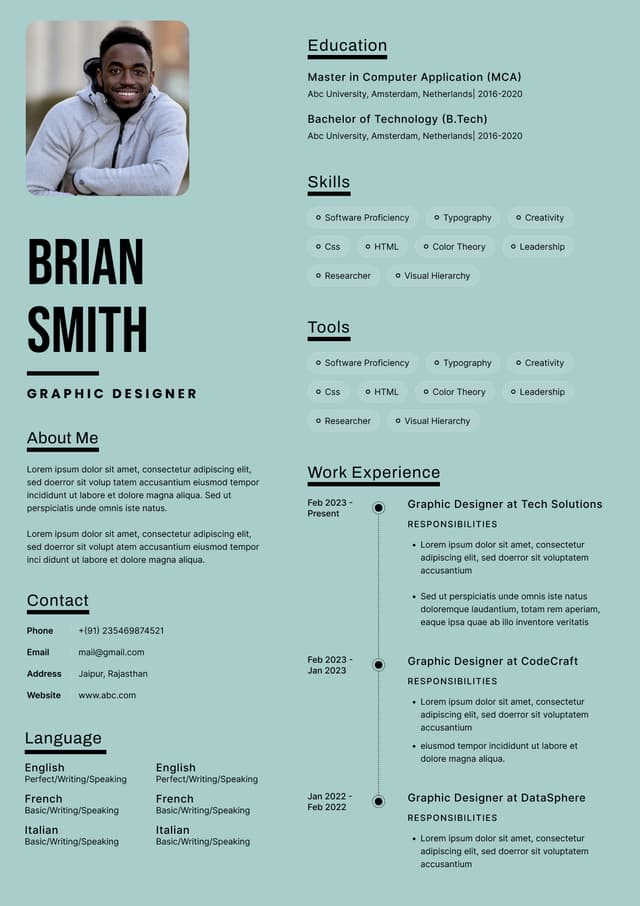
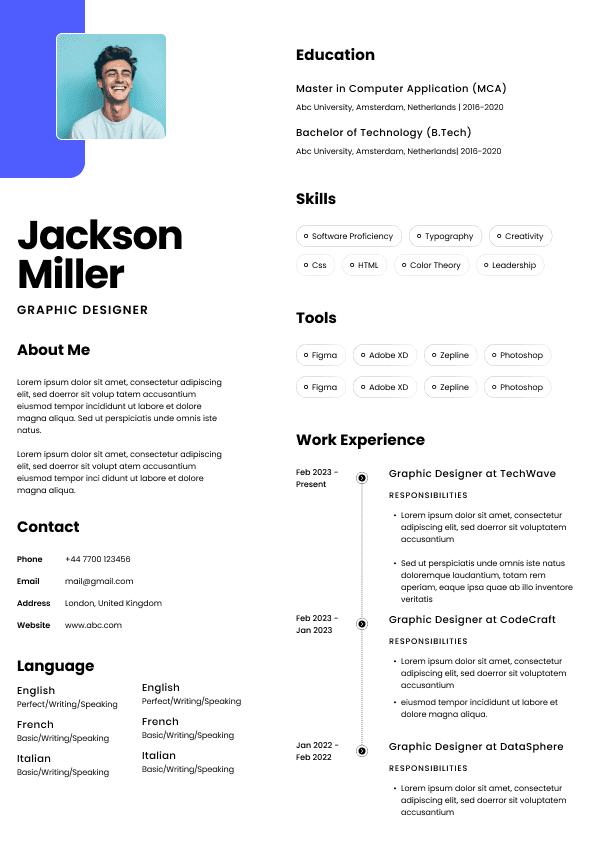
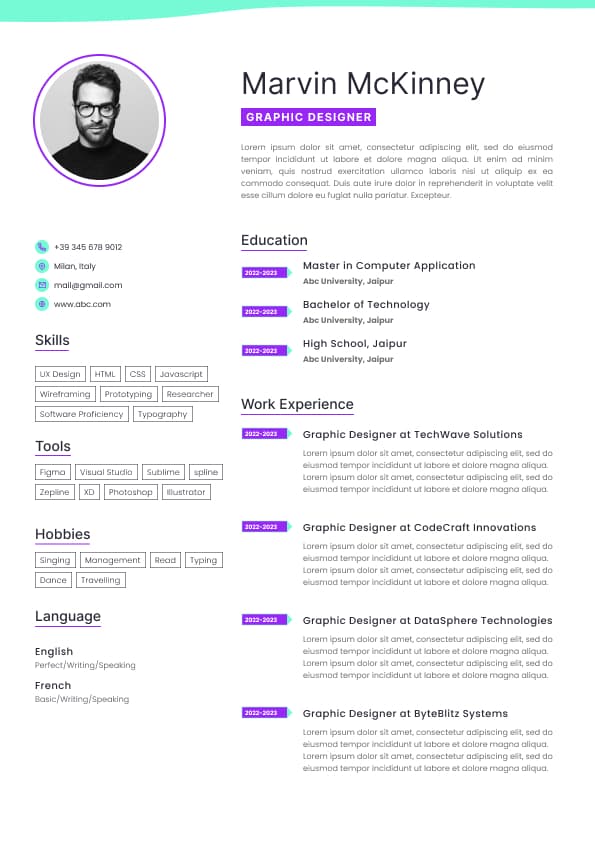
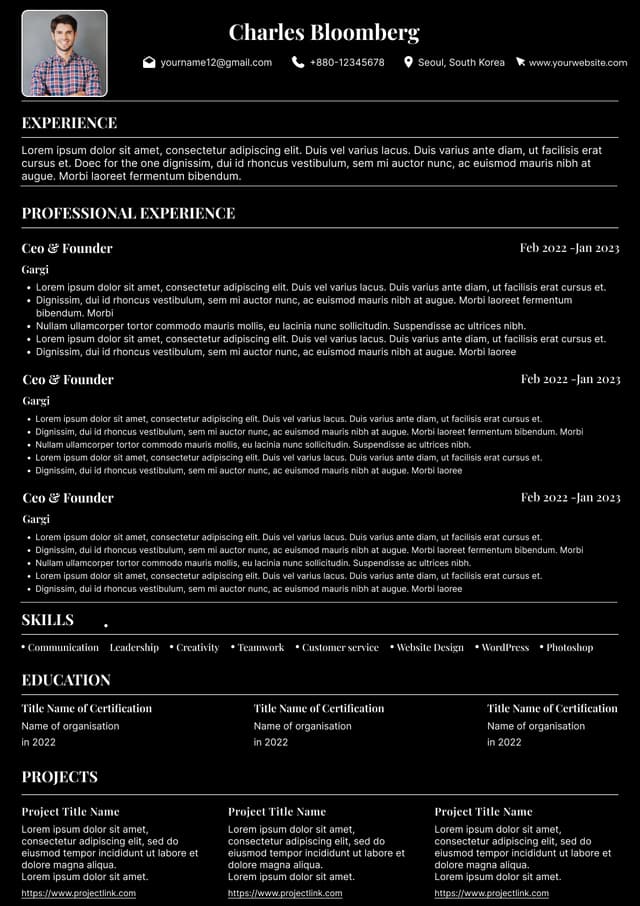
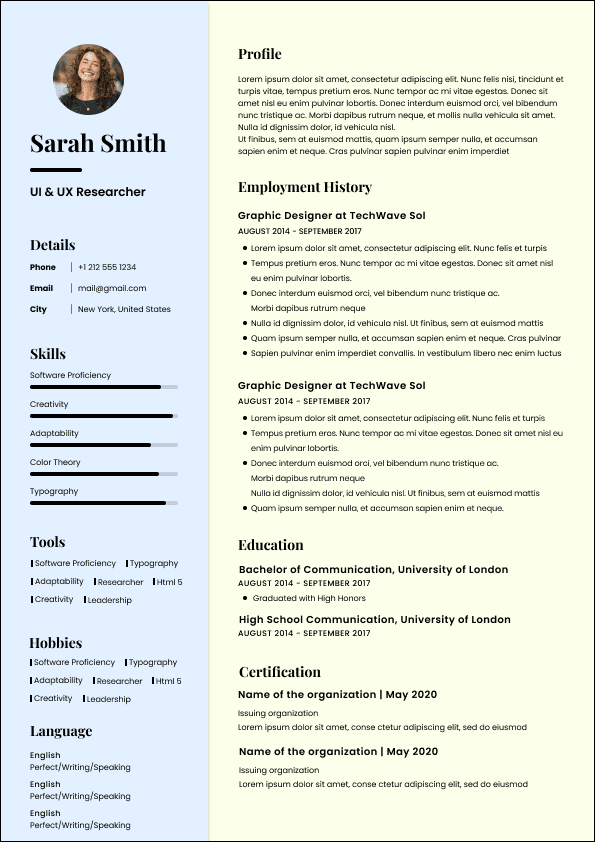
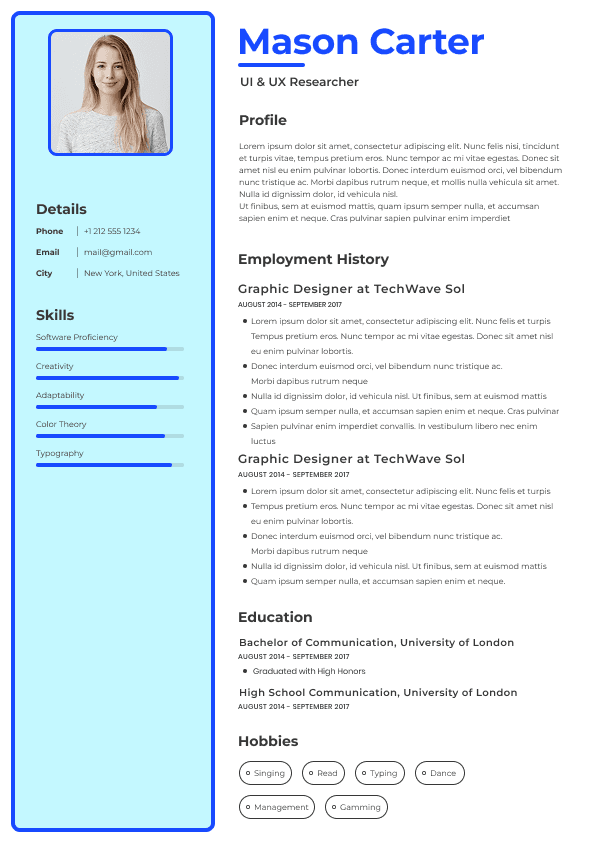
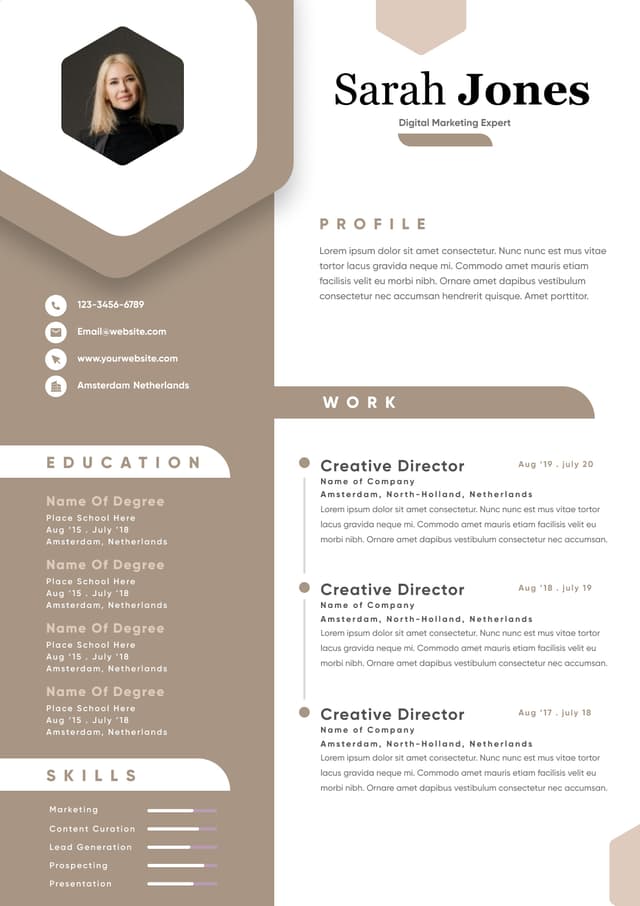
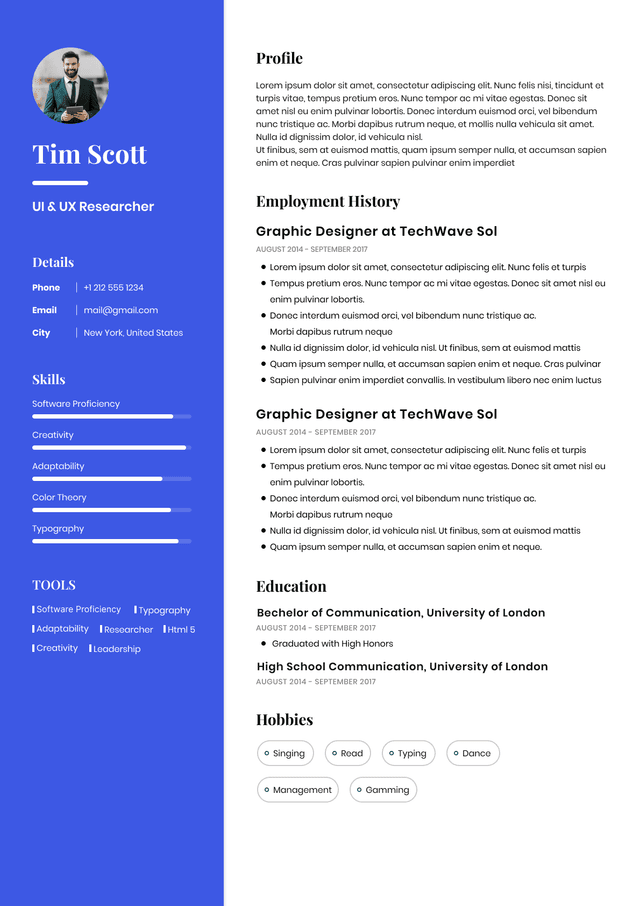
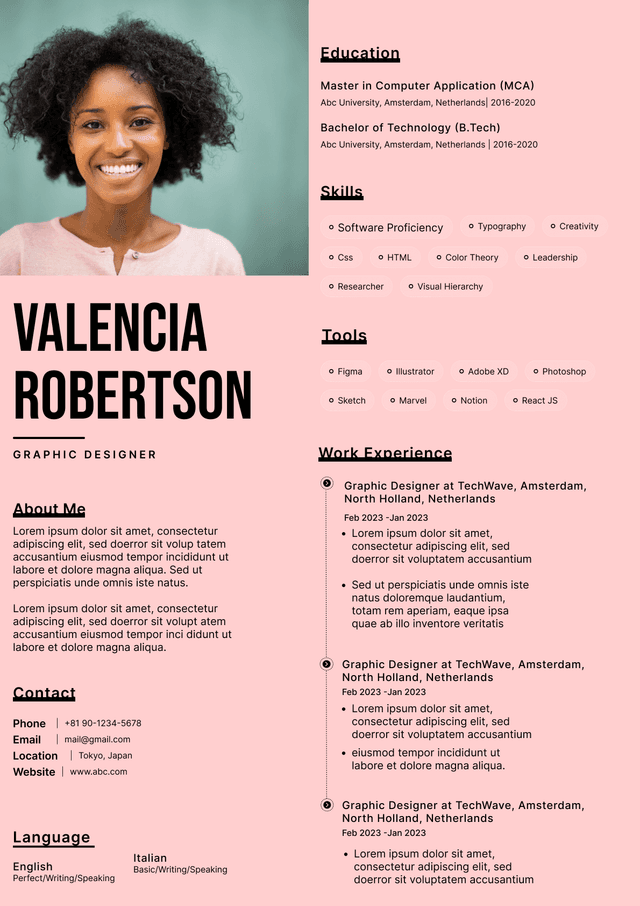
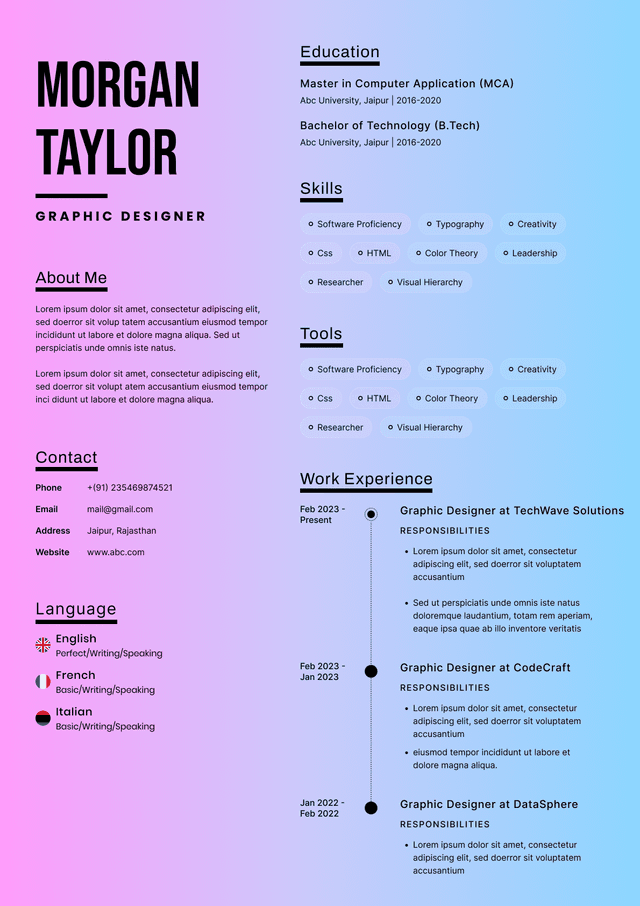
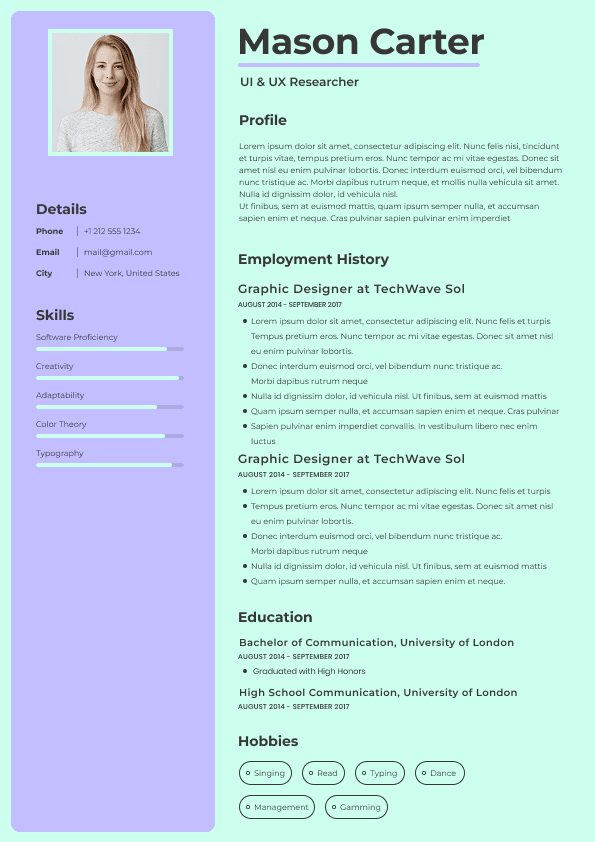
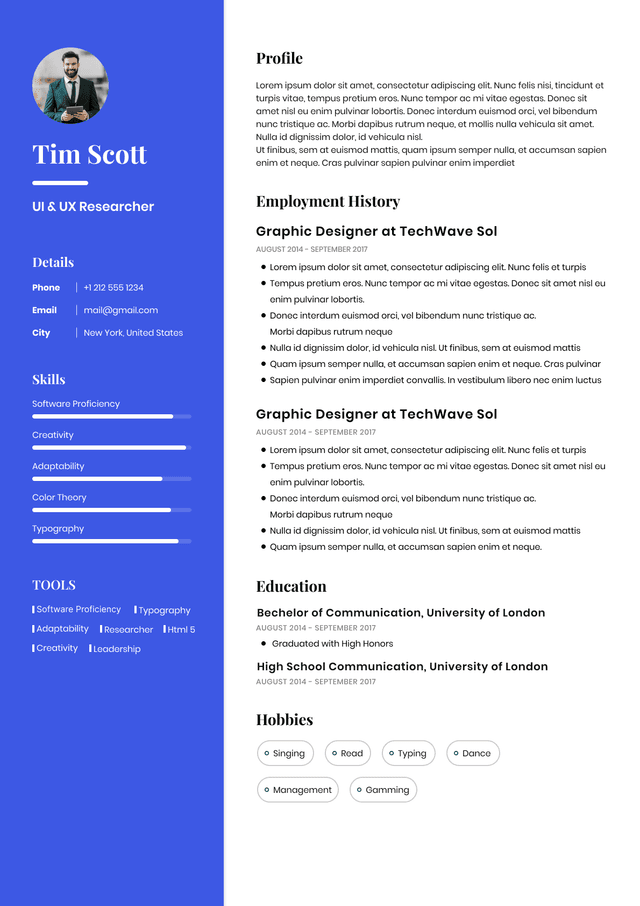
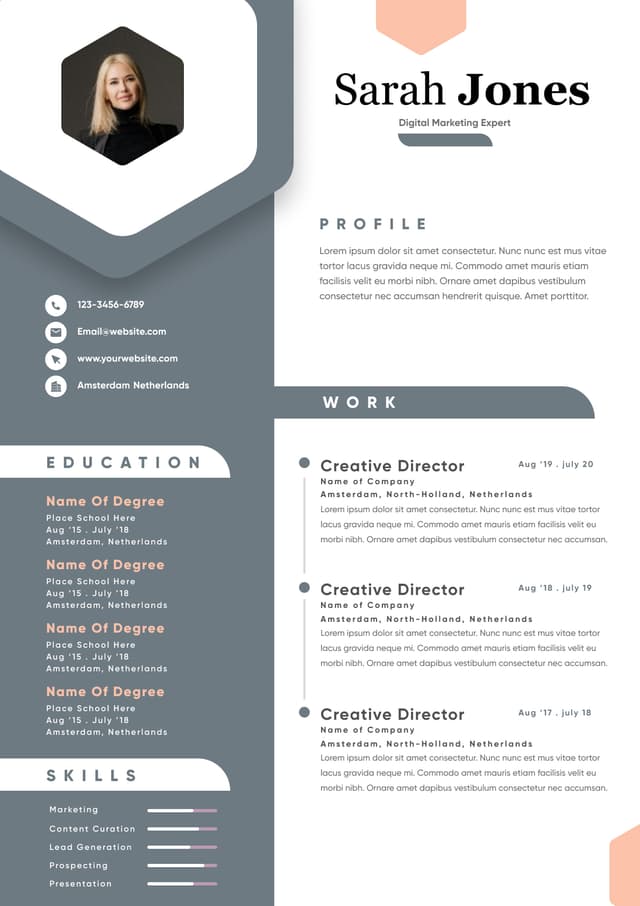
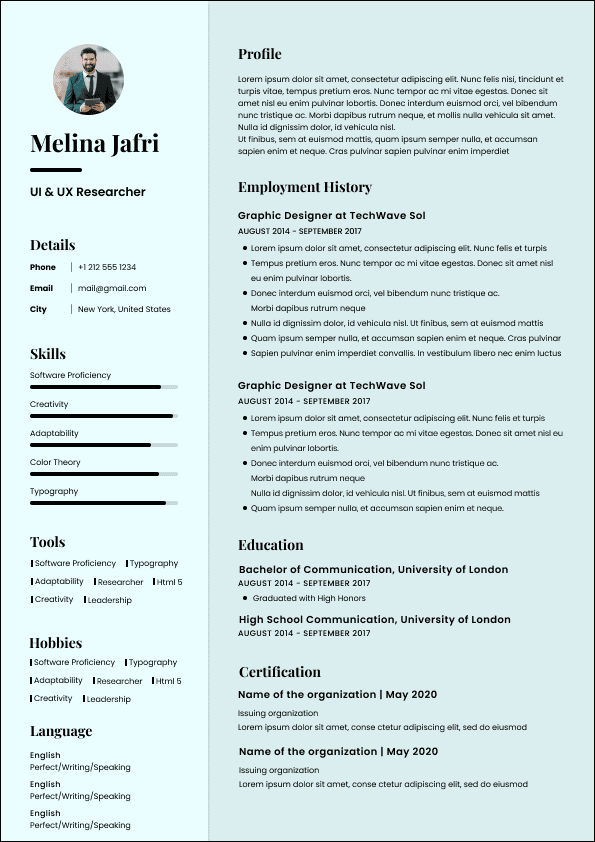
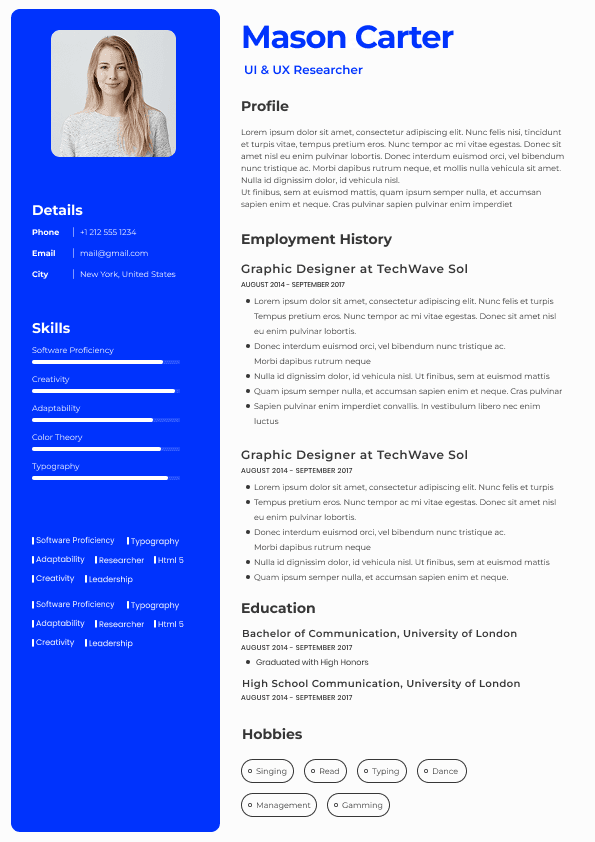
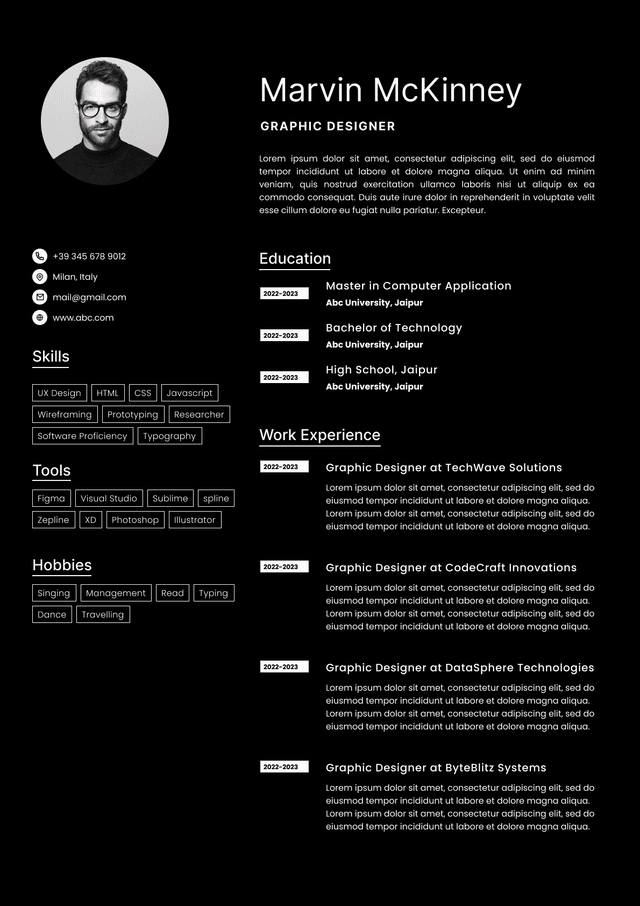
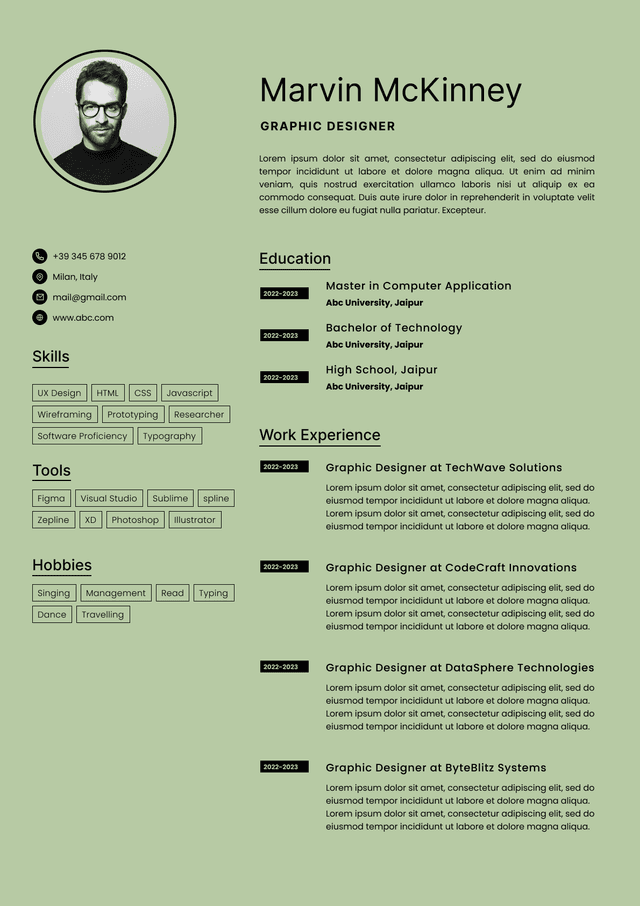
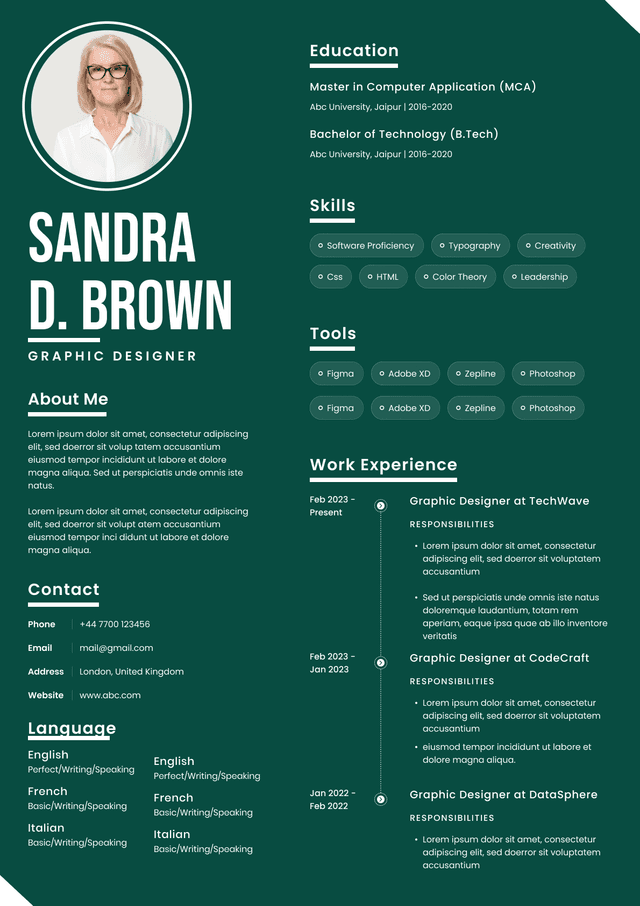
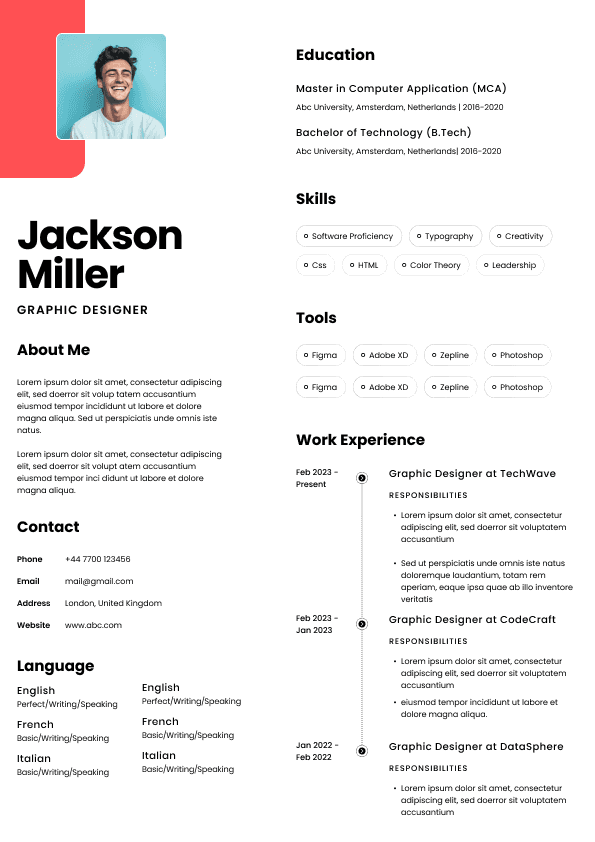
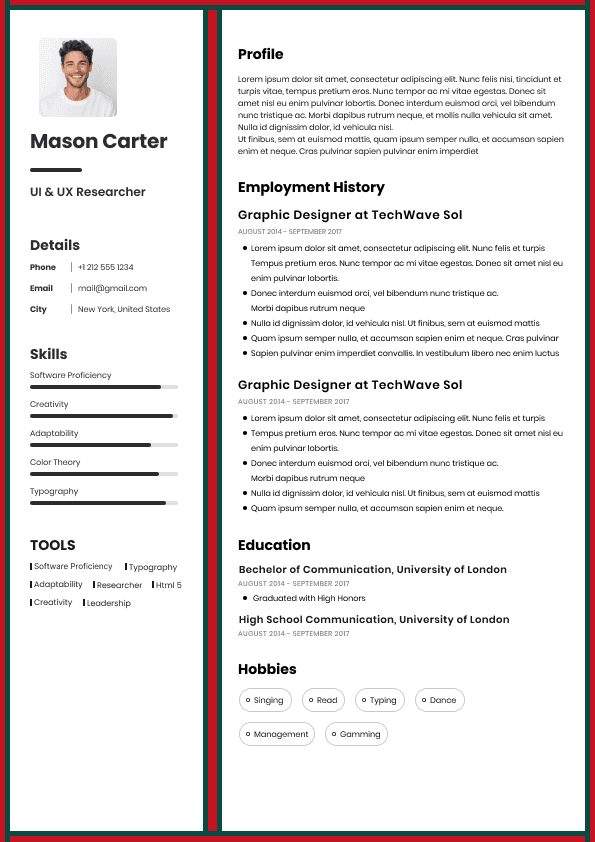
Choose from a wide range of NEWCV resume templates and customize your NEWCV design with a single click.
If you searched for an administrative assistant resume builder or generator, you want one thing: a polished, ATS-friendly resume you can create quickly without starting from scratch.
The fastest way to do this is to use a free online resume builder that provides:
Pre-formatted administrative templates
Built-in ATS optimization
Pre-written bullet points tailored to admin roles
Easy customization without design skills
This guide shows exactly how to use those tools effectively so your resume doesn’t just look good, but actually gets interviews.
Not all resume generators are equal. Administrative assistant roles have very specific expectations, and your tool must support them.
A strong administrative assistant resume builder should include:
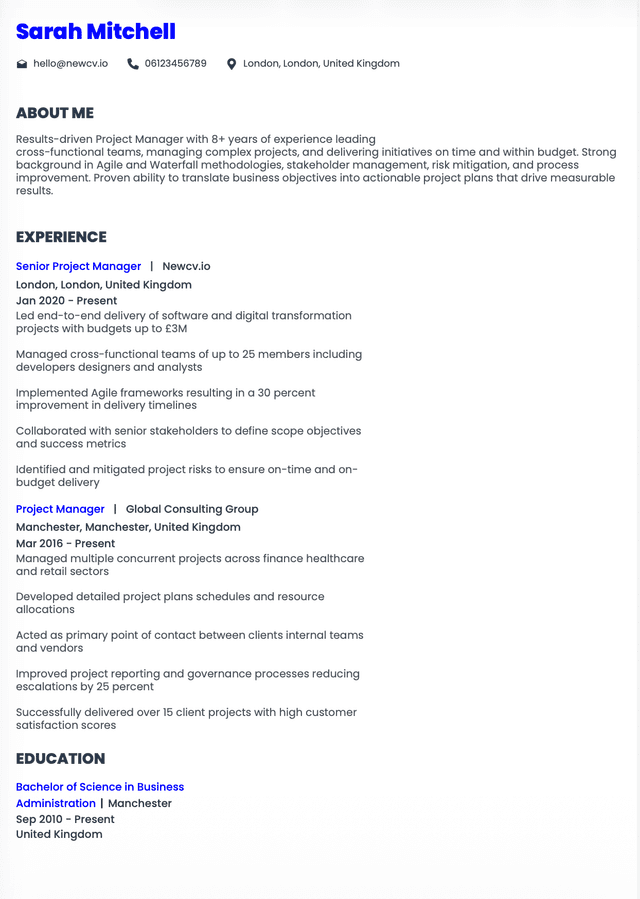
ATS-friendly templates with simple formatting
Section guidance tailored to admin roles
Pre-written bullet points for admin responsibilities
Keyword optimization prompts
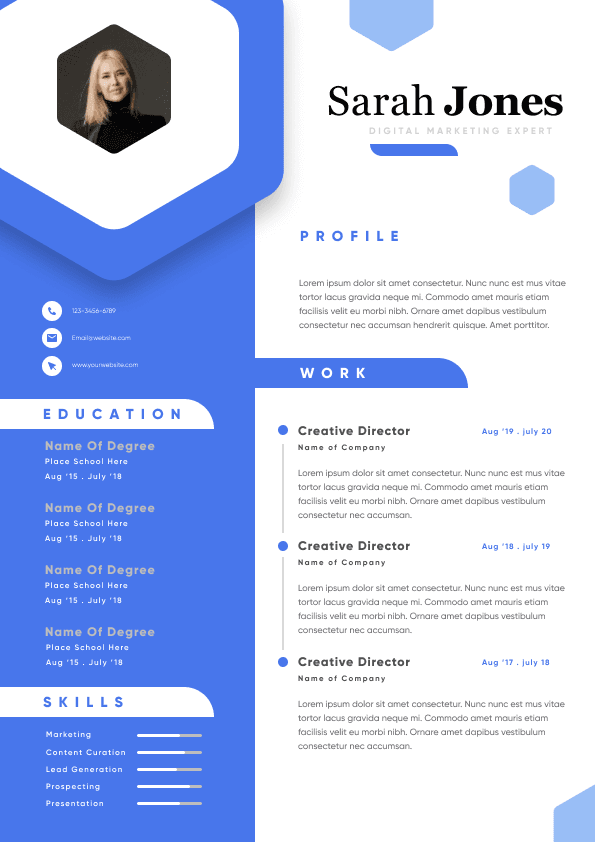
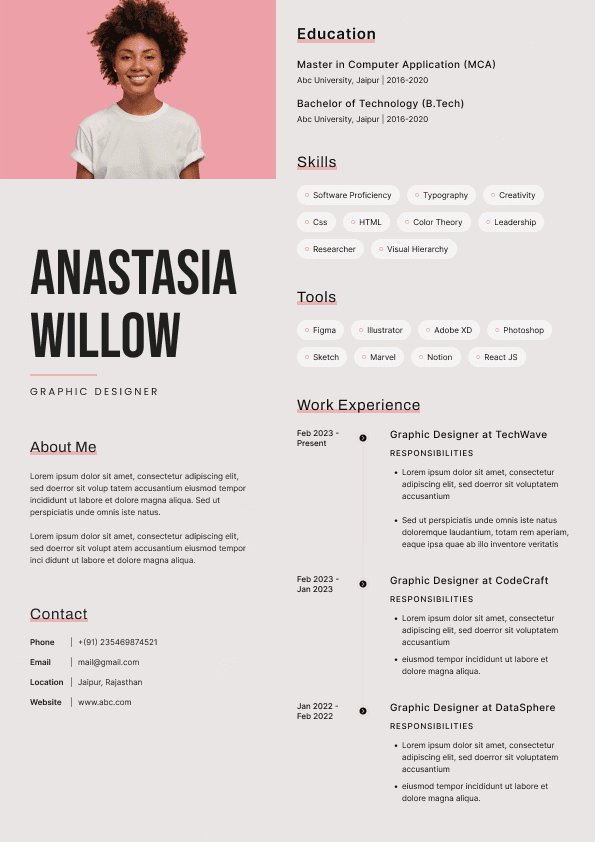
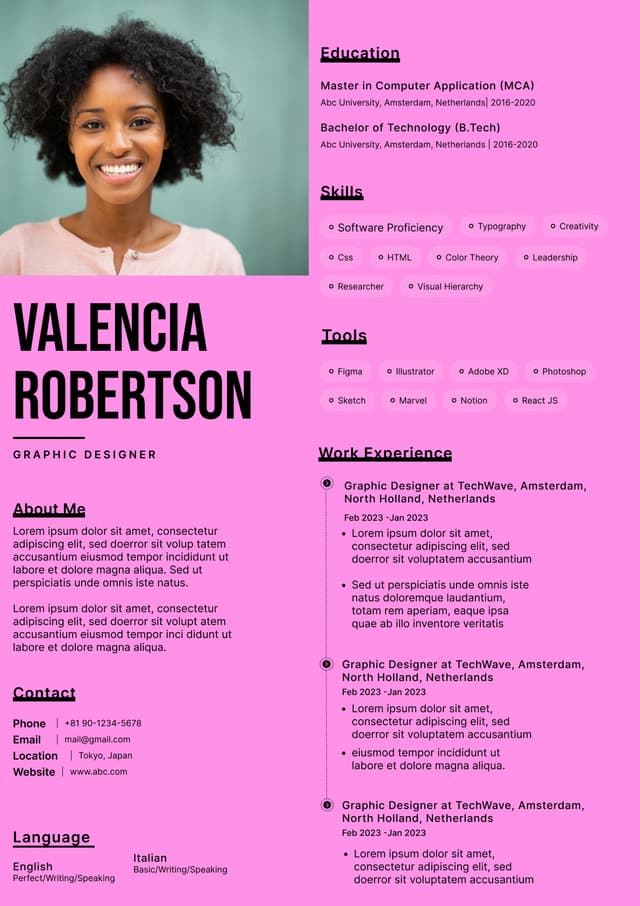
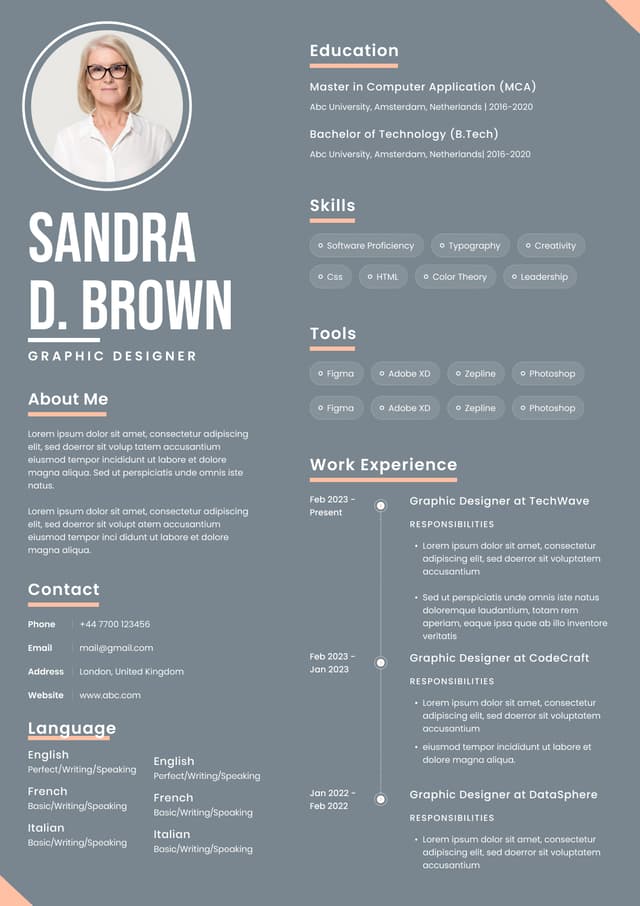
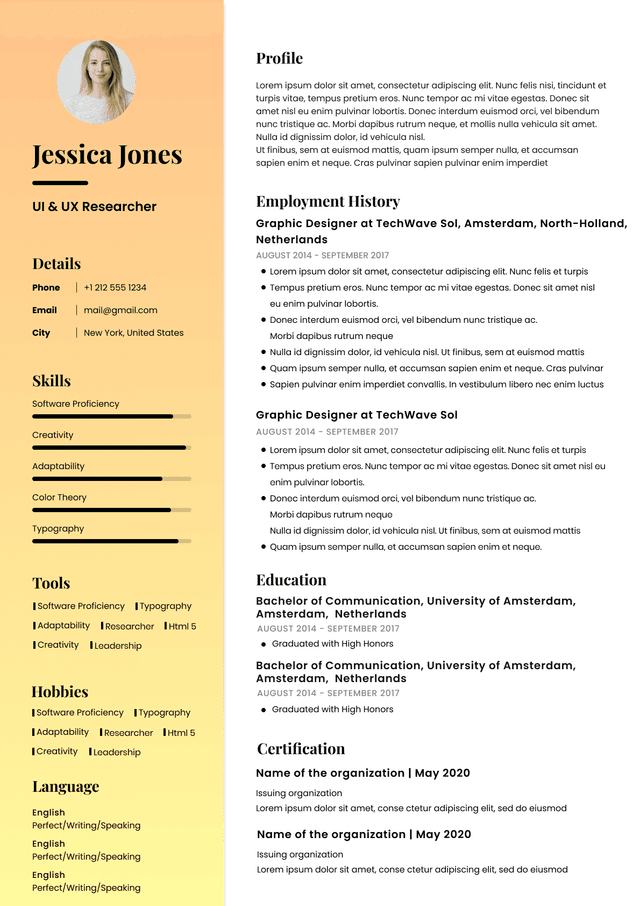
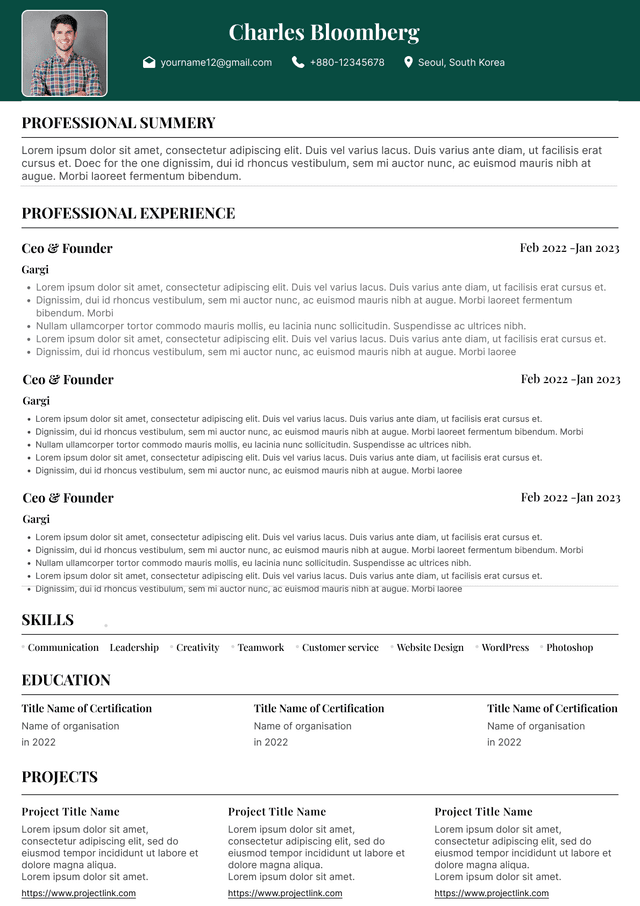
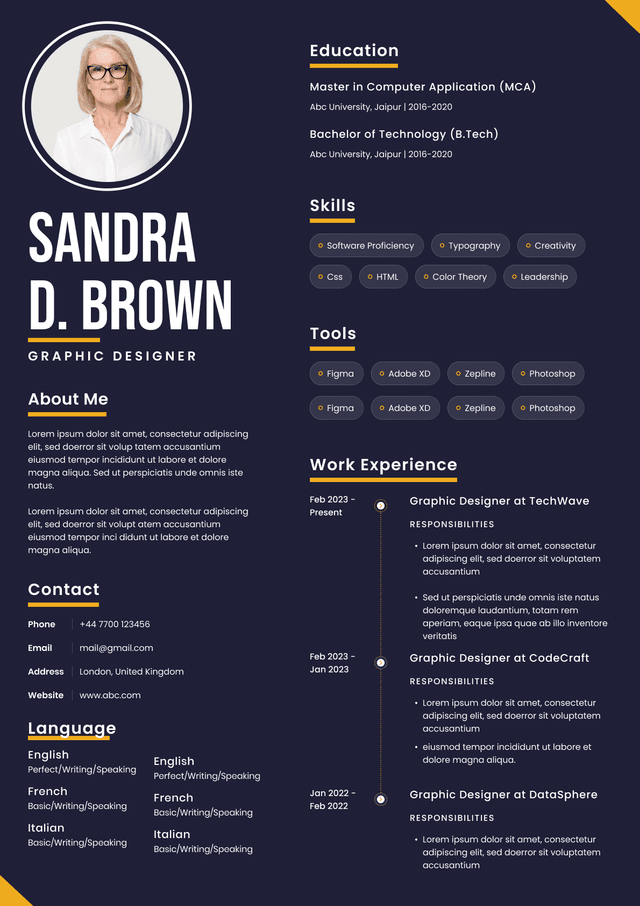
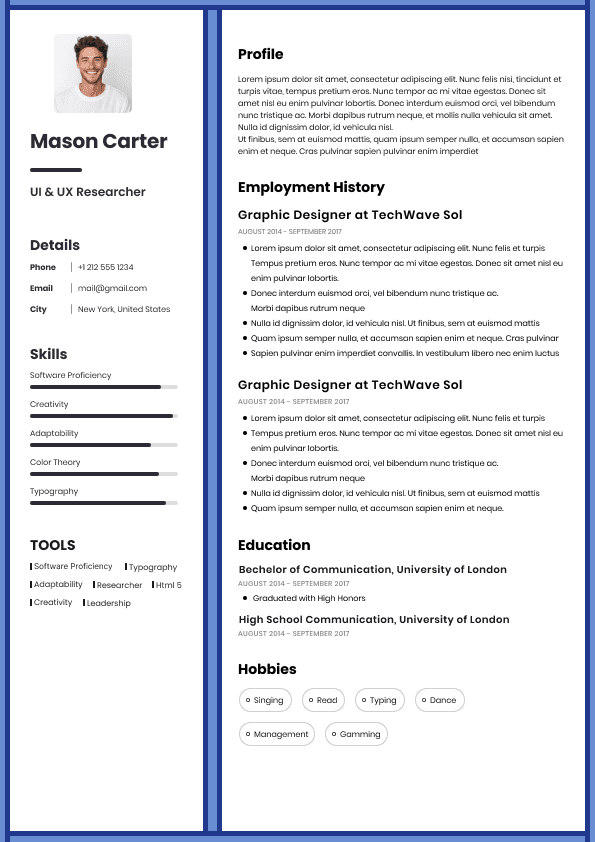
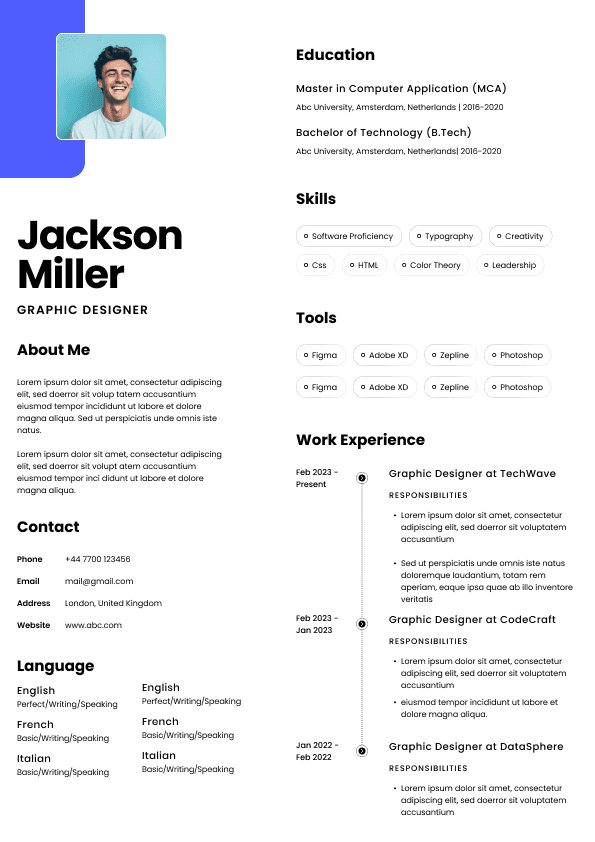
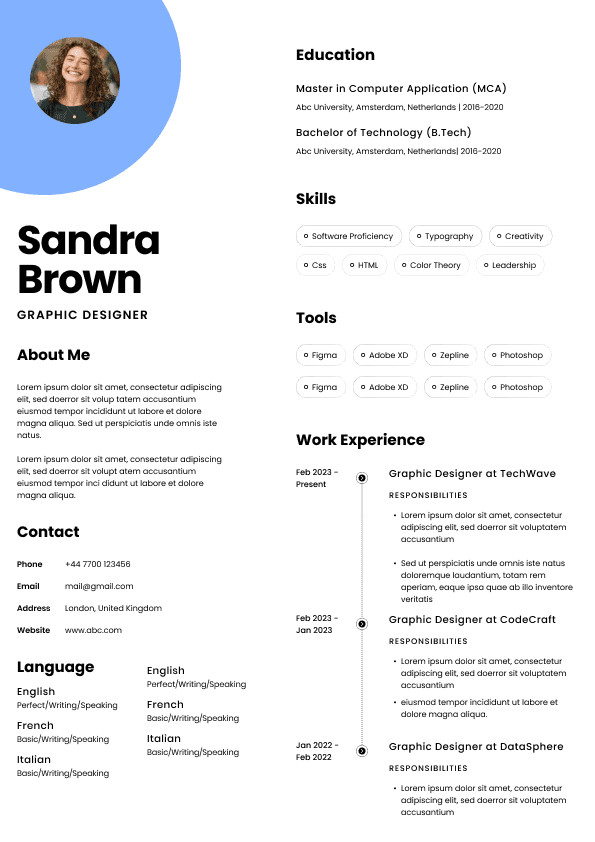
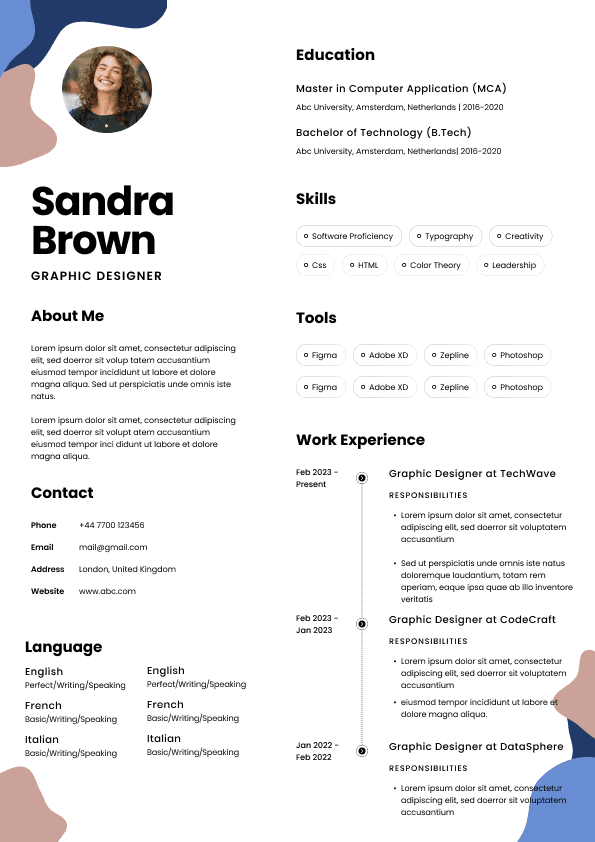
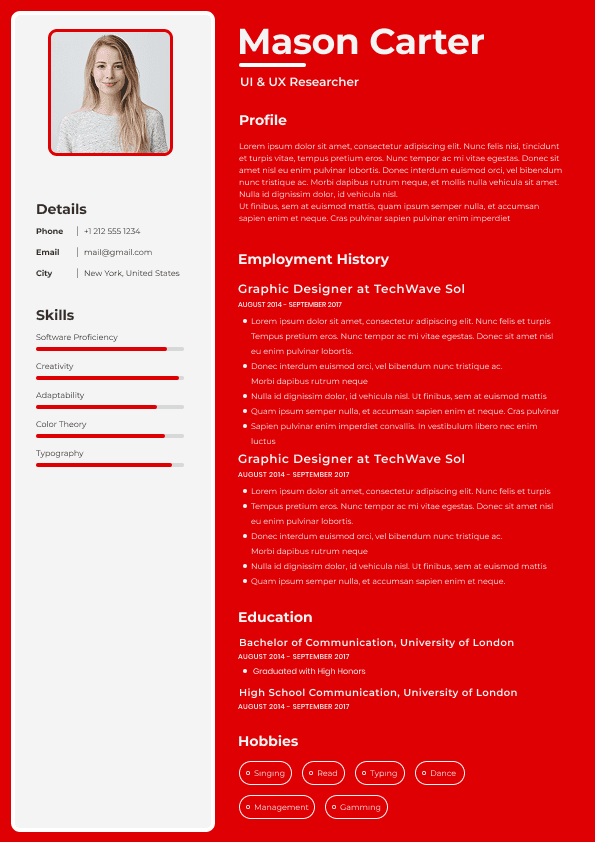
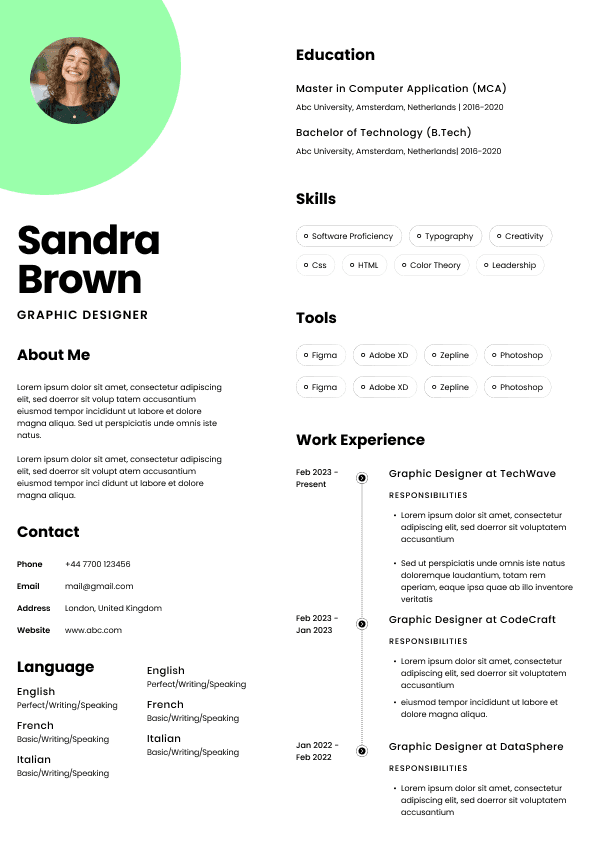
Clean, professional layouts (no graphics-heavy designs)
Export options (PDF + Word)
If your builder lacks these, your resume may get filtered out before a human even sees it.
Administrative roles often receive high application volume. Most companies use Applicant Tracking Systems (ATS) to filter resumes.
Relevant keywords (e.g., scheduling, coordination, data entry)
Standard section headings (Experience, Skills, Education)
Clean formatting (no tables, columns, or unusual fonts)
Consistent job titles
A good resume builder automatically structures your resume in a way ATS systems can read.
This is where most people go wrong. The tool is only as good as how you use it.
Pick a template that is:
Minimalist
Single-column
Black-and-white or subtle color
Clearly structured
Avoid “creative” templates. Administrative roles prioritize clarity and professionalism.
Most builders offer suggested bullet points. Use them as a base.
Do NOT copy them blindly.
Instead:
Resume builders often provide ready-made bullet points. These are useful, but only if customized.
Example:
“Managed office tasks and assisted team members.”
Why it fails:
Too vague
No impact
No specifics
Example:
“Coordinated daily office operations, supporting a team of 12 staff and improving scheduling efficiency by 20%.”
Why it works:
Specific responsibility
Even with the best tools, these mistakes can ruin your resume.
Builders give you structure, not uniqueness. If your resume looks like everyone else’s, it gets ignored.
Fancy layouts may look good but fail ATS scans.
Recruiters instantly recognize copy-paste content.
One resume does NOT fit all applications.
Listing “organization” or “communication” without examples weakens credibility.
Understanding this changes how you use a resume builder.
Organization and time management
Attention to detail
Communication skills
Technical proficiency (Excel, scheduling tools)
Reliability and consistency
Your resume builder helps format these, but you must prove them through examples.
A good builder includes many sections, but not all are necessary.
Professional Summary
Work Experience
Skills
Education
Certifications (e.g., Microsoft Office Specialist)
Technical tools
Languages
Most candidates using resume builders end up with similar-looking resumes. Here’s how to stand out.
Instead of:
Use:
Volume (calls, documents, meetings)
Time saved
Efficiency improvements
Even with a builder, adjust:
Many tools offer premium upgrades, but free versions are often enough.
ATS-friendly templates
Basic formatting options
Download functionality
More templates
AI suggestions
Cover letter generators
You only need paid features if:
Use transferable skills:
Customer service
Scheduling
Organization
Communication
Example:
Highlight:
Administrative tasks from previous roles
Clear, structured templates
Customized bullet points
ATS-friendly formatting
Job-specific keywords
Quantifiable results
Overdesigned templates
Copy-paste content
Before finishing your resume in the builder, confirm:
All sections are complete and relevant
Bullet points show impact
Keywords match your target job
Formatting is clean and consistent
No spelling or grammar errors
If all of these are checked, your resume is ready to submit.

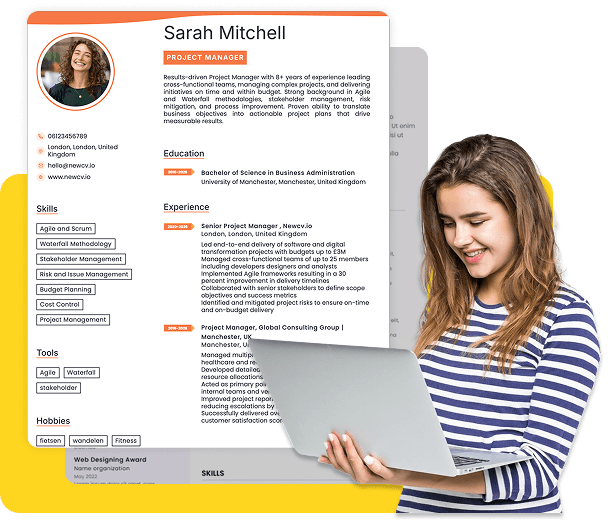
Use ATS-optimised Resume and resume templates that pass applicant tracking systems. Our Resume builder helps recruiters read, scan, and shortlist your Resume faster.
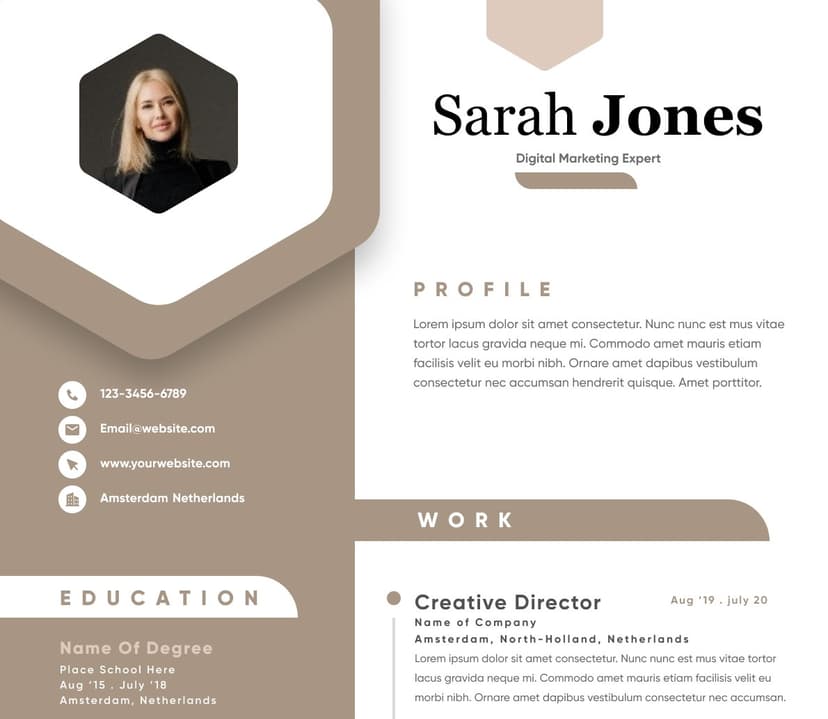
Use professional field-tested resume templates that follow the exact Resume rules employers look for.
Create Resume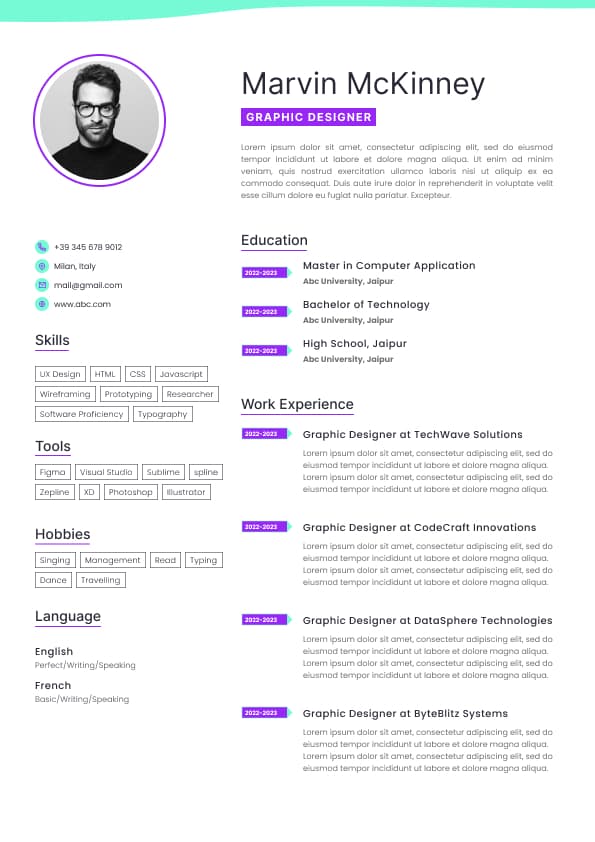
Use professional field-tested resume templates that follow the exact Resume rules employers look for.
Create ResumeAdjust wording to match your experience
Add numbers where possible
Align with job descriptions you’re targeting
Focus on relevance, not completeness.
Experience: Prioritize admin-related tasks
Skills: Include tools like Microsoft Office, scheduling software
Summary: Highlight organization, communication, and support skills
Scan 2–3 job postings and identify repeated terms.
Then:
Integrate those terms naturally into your resume
Avoid keyword stuffing
Match exact phrases when possible (e.g., “calendar management”)
Before submitting:
Export as PDF (unless job asks for Word)
Check formatting consistency
Remove unnecessary graphics or icons
Clear scope
Measurable impact
Use this formula:
Action Verb + Task + Context + Result
Examples:
Managed executive calendars for 3 senior leaders, reducing scheduling conflicts by 30%
Processed and organized 200+ weekly documents, improving retrieval time
Coordinated meetings, travel, and communications across departments
Objective statements (unless entry-level)
Personal interests (unless strategic)
References
Keywords
Bullet points
Summary
This dramatically increases interview chances.
You struggle with writing content
You want faster customization
Otherwise, free tools are sufficient.
Organizational responsibilities
Systems or tools used
Keep it simple:
Use years instead of months
Focus on skills and experience
Avoid over-explaining
Generic summaries
Keyword stuffing
Irrelevant experience




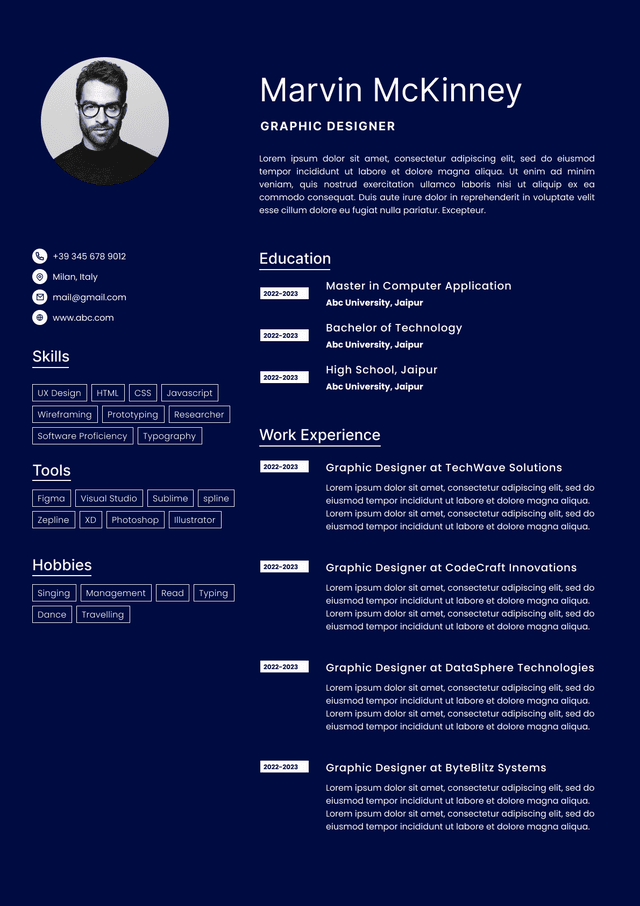
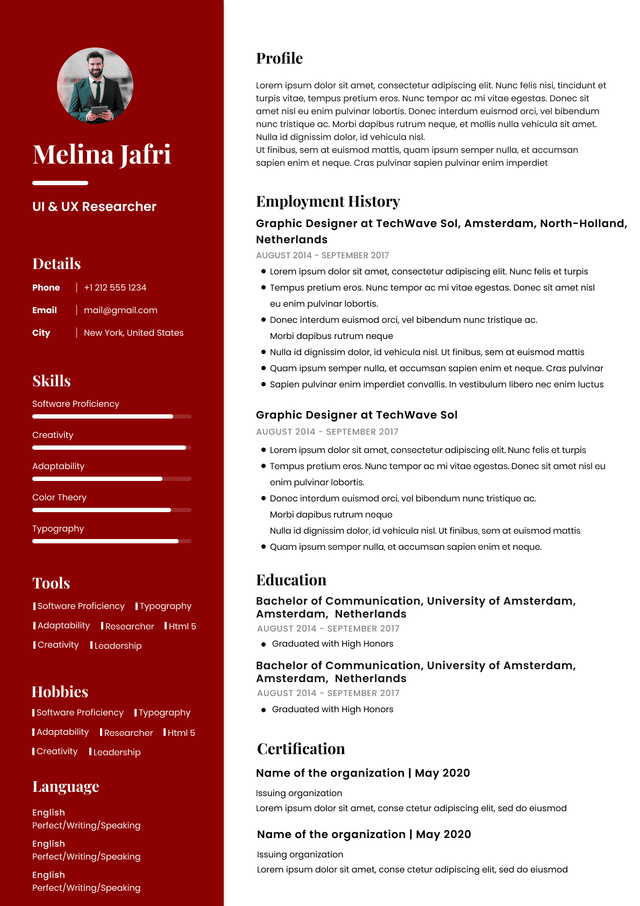
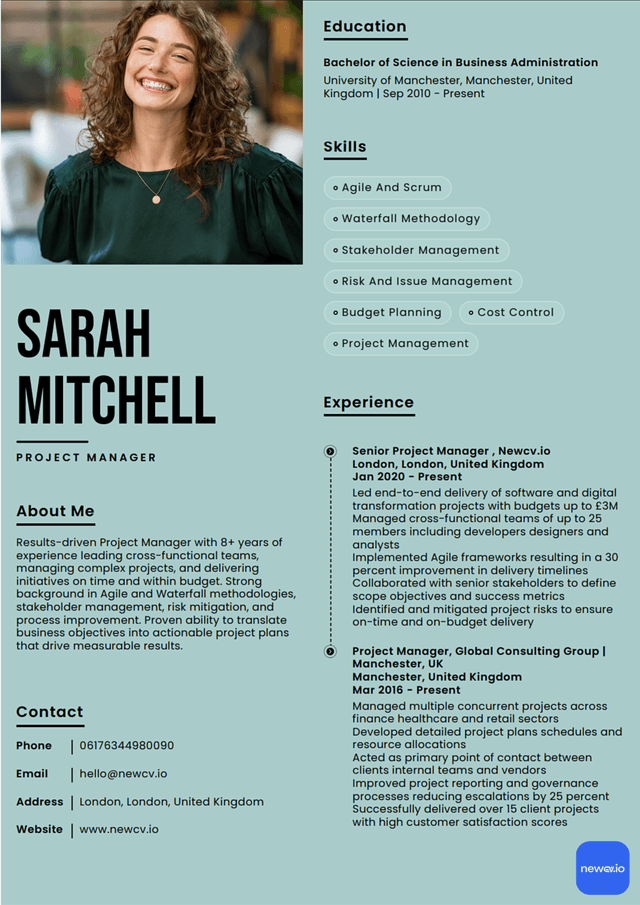
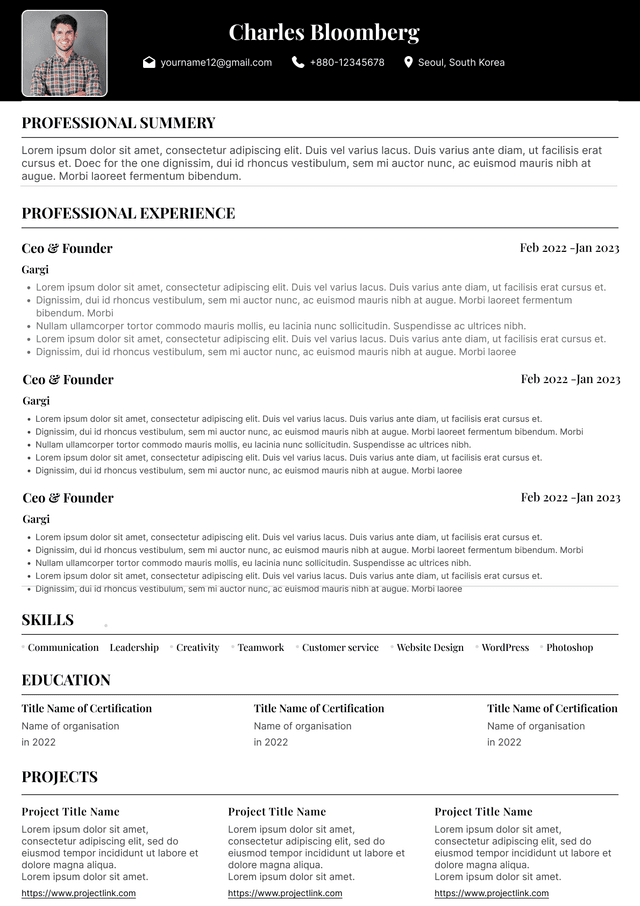
 Upload Resume
 Import from Linkedin