
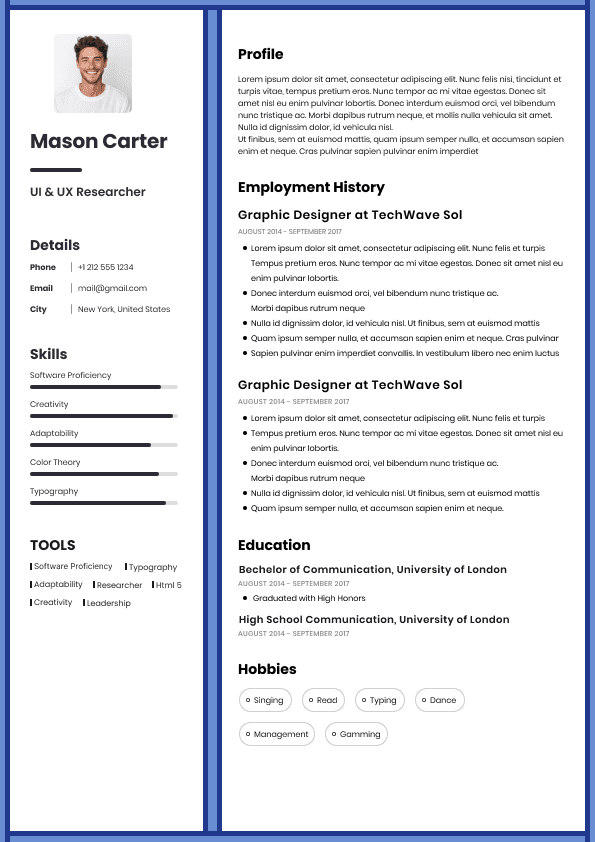
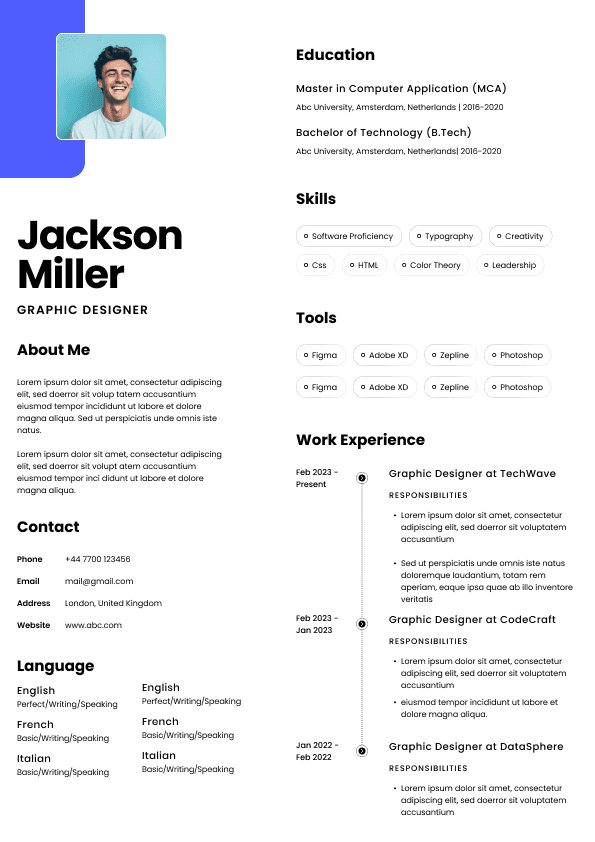
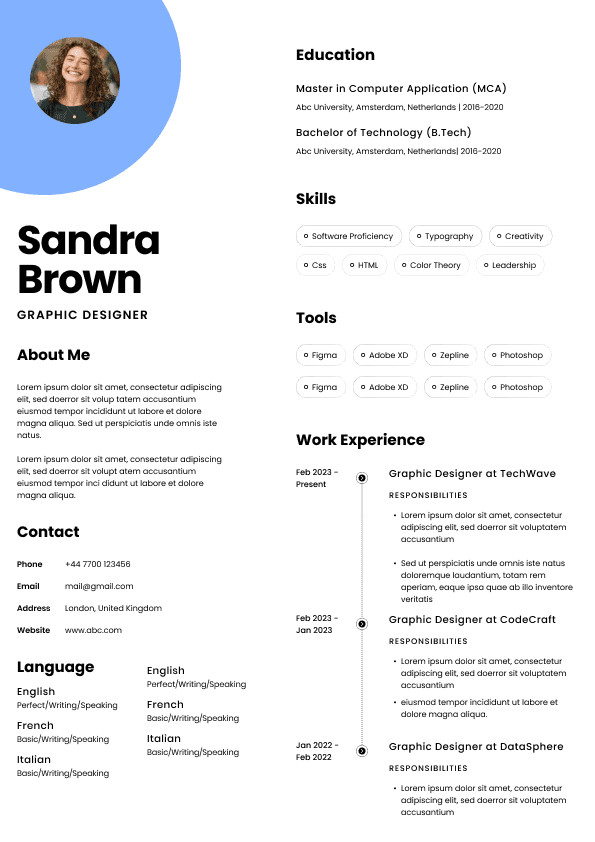
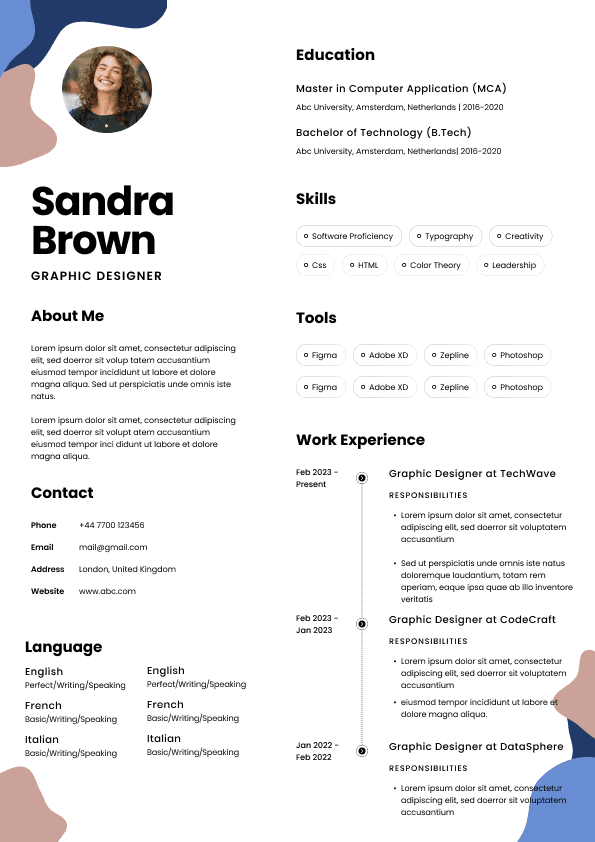
Choose from a wide range of NEWCV resume templates and customize your NEWCV design with a single click.

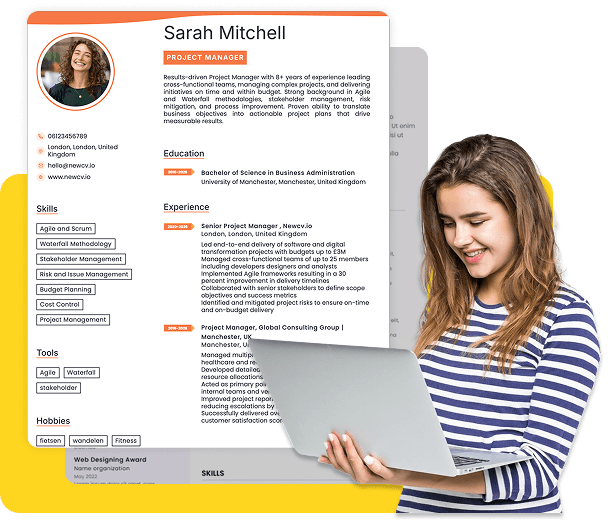
An administrative assistant resume should clearly show the tools, software, and office equipment you can use confidently in a real workplace. Hiring managers scan for these skills first because they directly impact how quickly you can contribute. The most effective resumes don’t just list tools randomly—they prioritize the exact systems employers expect, like Microsoft Office, scheduling platforms, CRMs, and office equipment. This guide shows you exactly what to include, how to present it, and what mistakes to avoid so your resume stands out immediately.
When employers review an administrative assistant resume, they are not just checking if you’ve used tools—they want proof that you can operate efficiently in a modern office environment.
That means your resume must demonstrate:
Familiarity with essential administrative software
Ability to manage communication and scheduling tools
Experience with office systems and workflows
Comfort using standard office equipment
This section of your resume acts as a capability snapshot. If it’s weak or vague, you risk being filtered out early.
You should not bury your tools in one place. Instead, distribute them strategically:
This is where recruiters look first.
This shows how you applied the tools in real situations.
Use this only for your strongest, most relevant tools.
Best practice: Combine all three for maximum impact.
To fully match search intent and hiring expectations, your resume must include tools across four key categories:
These are the foundation of administrative work.
Include tools like:
Microsoft Office Suite (Word, Excel, PowerPoint, Outlook)
Google Workspace (Docs, Sheets, Slides, Gmail, Drive)
These are non-negotiable for most roles.
Administrative assistants often manage calendars and appointments.
Include:
Outlook Calendar
Google Calendar
Calendly
Zoom scheduling tools
Employers look for coordination efficiency, not just familiarity.
Even administrative roles increasingly require handling client data.
Include:
Salesforce
HubSpot
Zoho CRM
Internal database systems
This signals you can manage customer and operational data workflows.
Many candidates overlook this—but it matters.
Include:
Printers and multi-function devices
Scanners
Fax machines (still relevant in some industries)
Filing systems (digital and physical)
This shows you can operate in a hands-on office environment, not just digitally.
Avoid dumping tools into a long, messy list. Structure it clearly.
Technical Skills:
Microsoft Office Suite (Excel, Word, Outlook, PowerPoint)
Google Workspace (Docs, Sheets, Drive)
CRM Systems (Salesforce, HubSpot)
Scheduling Tools (Outlook Calendar, Calendly)
Office Equipment (printers, scanners, filing systems)
Skills: Microsoft Office, Google, CRM, tools, equipment
The weak version lacks:
Specificity
Structure
Search relevance
Listing tools is not enough. You must show how you used them.
Managed executive calendars using Outlook and Calendly, reducing scheduling conflicts by 30%
Maintained client records in Salesforce, ensuring accurate data tracking and reporting
Created reports and presentations using Excel and PowerPoint for weekly leadership meetings
Used Microsoft Office
Worked with CRM systems
The difference is context + outcome.
Do not list every tool you’ve ever touched. Focus on relevance.
Software mentioned directly
Tools implied by responsibilities
Industry-specific systems
For example:
Corporate roles → Microsoft Office + Outlook + CRM
Startups → Google Workspace + Slack + Notion
Medical/legal offices → scheduling + document management systems
Tailoring matters more than volume.
Even strong candidates lose opportunities due to poor tool presentation.
Listing tools without specifying versions or components
Including outdated or irrelevant software
Overloading with too many tools (looks unfocused)
Failing to show real usage in experience
Using vague terms like “office tools”
Precision wins.
Grouped and categorized tools
Specific platforms (e.g., Salesforce, not just CRM)
Real examples in experience section
Alignment with job description
Generic tool lists
No context or usage
Outdated systems
Overly long, unfocused lists
Employers want confidence, not clutter.
Not all tools carry equal weight.
Microsoft Office (especially Excel and Outlook)
Google Workspace
CRM systems
Scheduling platforms
Basic equipment (still include, but later)
General office systems
Ordering matters because recruiters scan quickly.
If you’re early in your career, you can still present tools effectively.
Include tools used in internships or school projects
Add certifications or training (e.g., Excel courses)
Mention practice or simulated experience
Created spreadsheets and reports using Excel for academic projects
Practiced CRM workflows using HubSpot training platform
This shows initiative and readiness.
Yes—if relevant to the role.
Include equipment when:
The job involves physical office operations
The employer mentions administrative support tasks
You have hands-on experience
Do not overemphasize it—but don’t ignore it either.
Make sure your tools section:
Matches the job description
Includes both software and equipment
Is clearly structured and easy to scan
Shows real usage in experience
Avoids vague or generic terms
If you meet all five, you are ahead of most applicants.
Use ATS-optimised Resume and resume templates that pass applicant tracking systems. Our Resume builder helps recruiters read, scan, and shortlist your Resume faster.
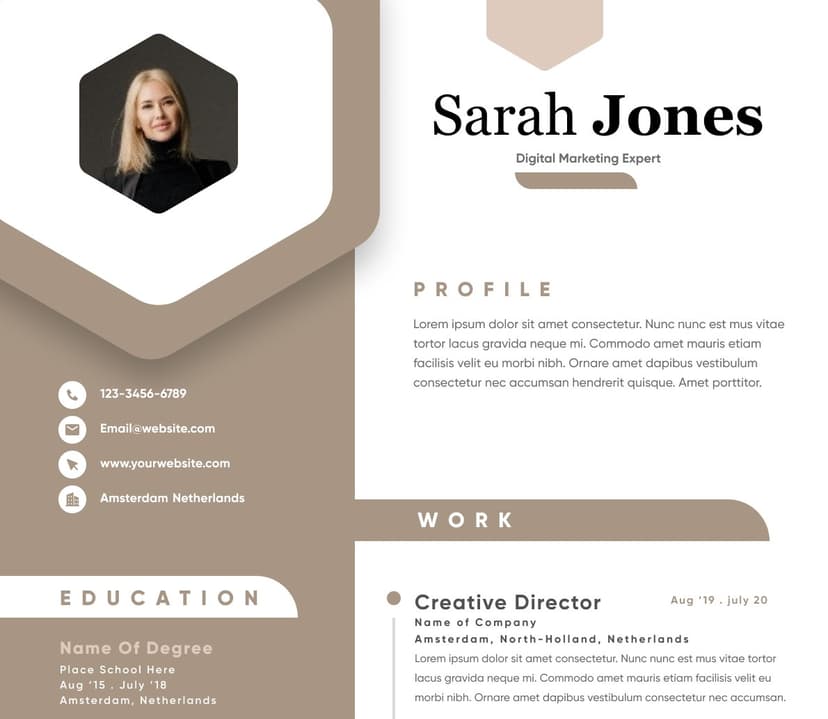
Use professional field-tested resume templates that follow the exact Resume rules employers look for.
Create Resume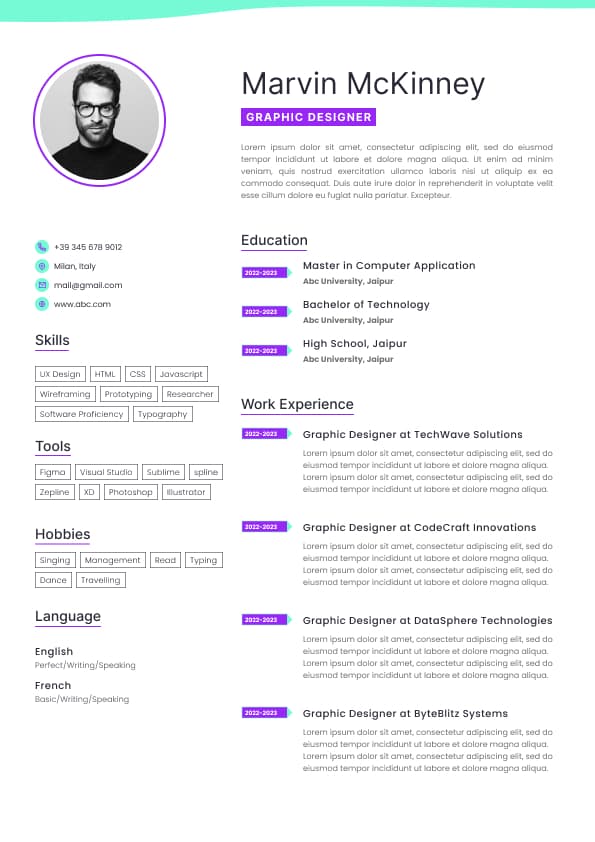
Use professional field-tested resume templates that follow the exact Resume rules employers look for.
Create Resume



 Upload Resume
 Import from Linkedin