STILL APPLYING. STILL HEARING NOTHING?BUILD YOUR RESUME

STILL APPLYING. STILL HEARING NOTHING?BUILD YOUR RESUME
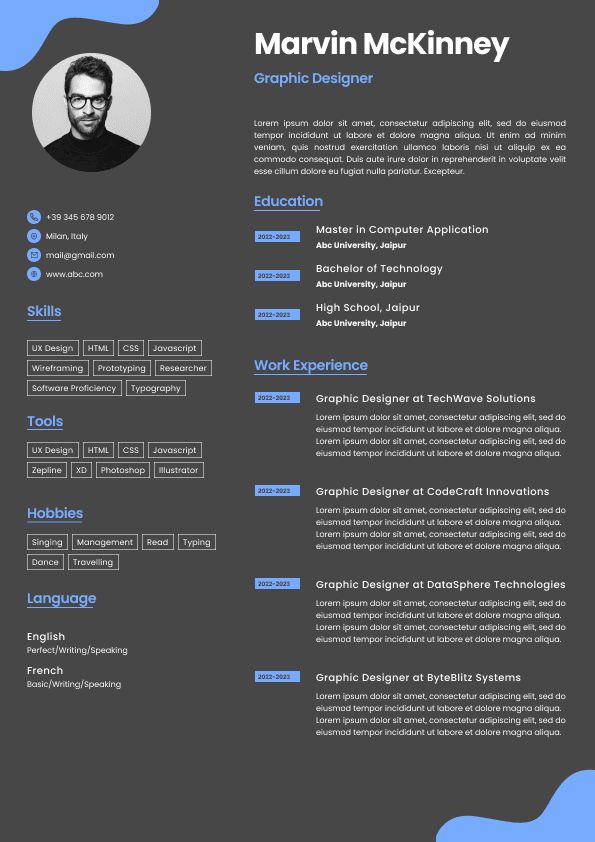
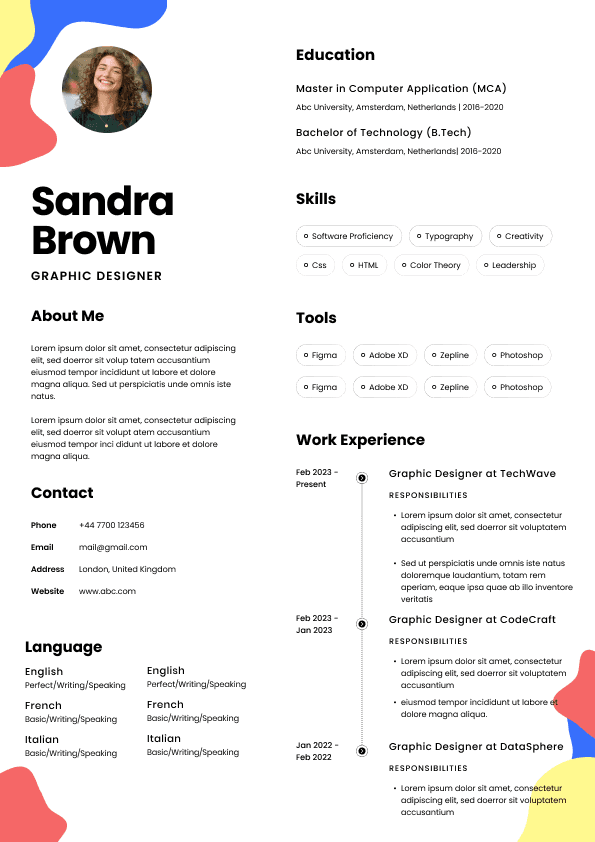
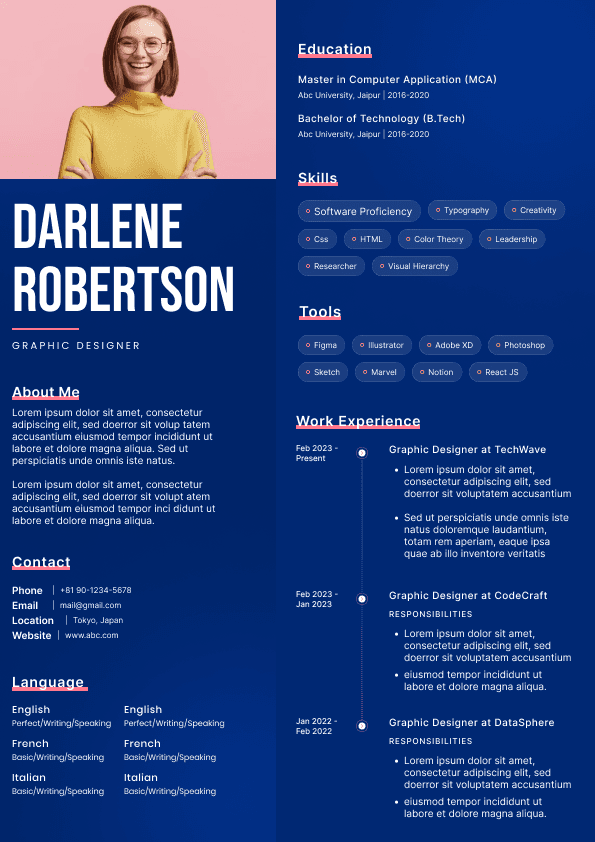
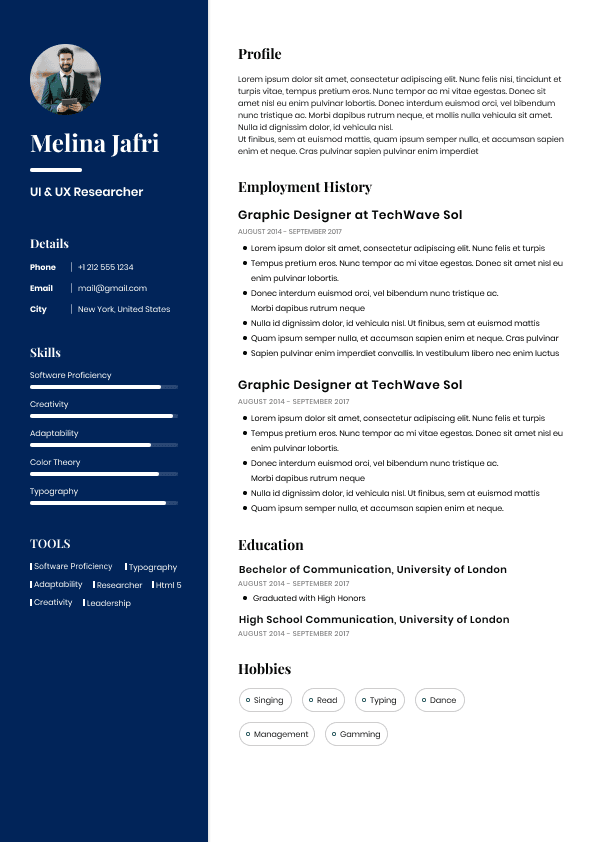
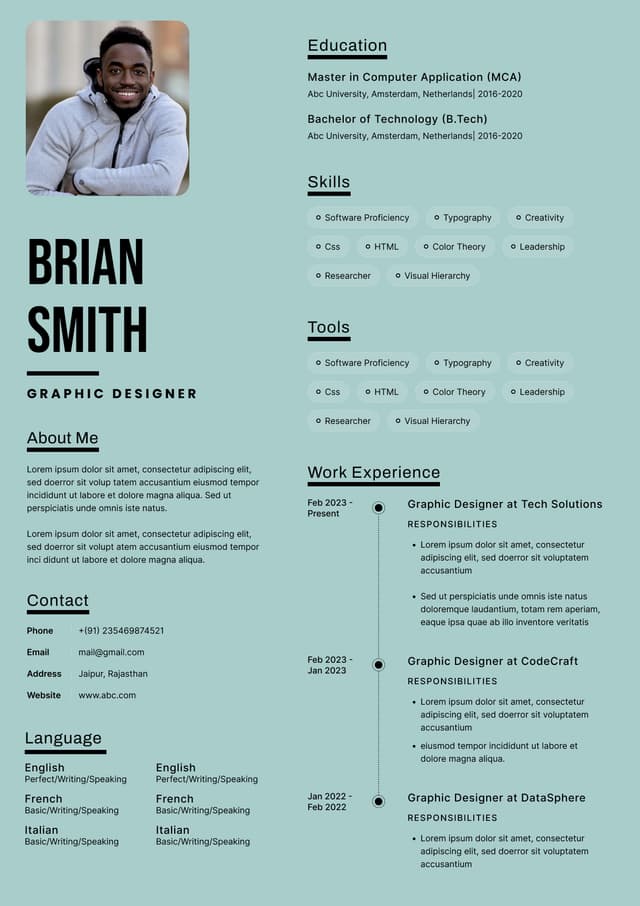
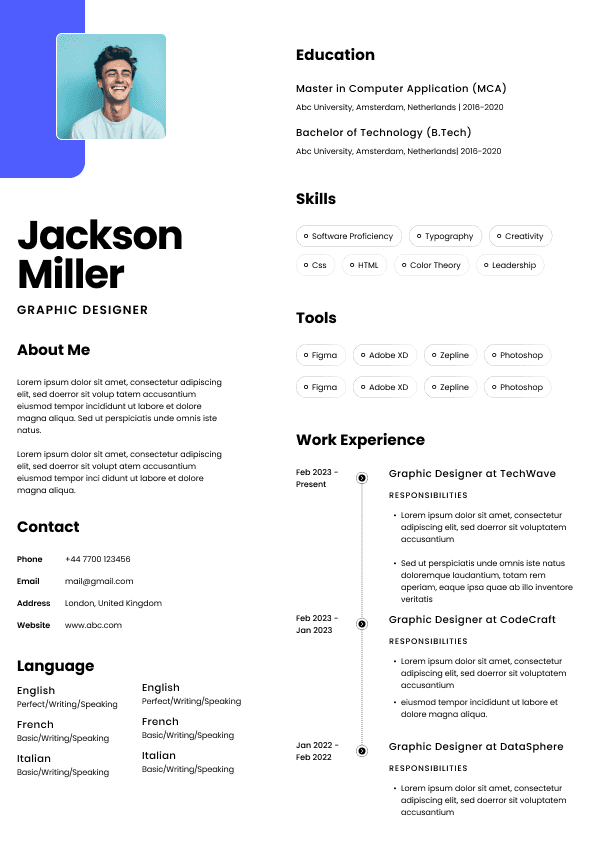
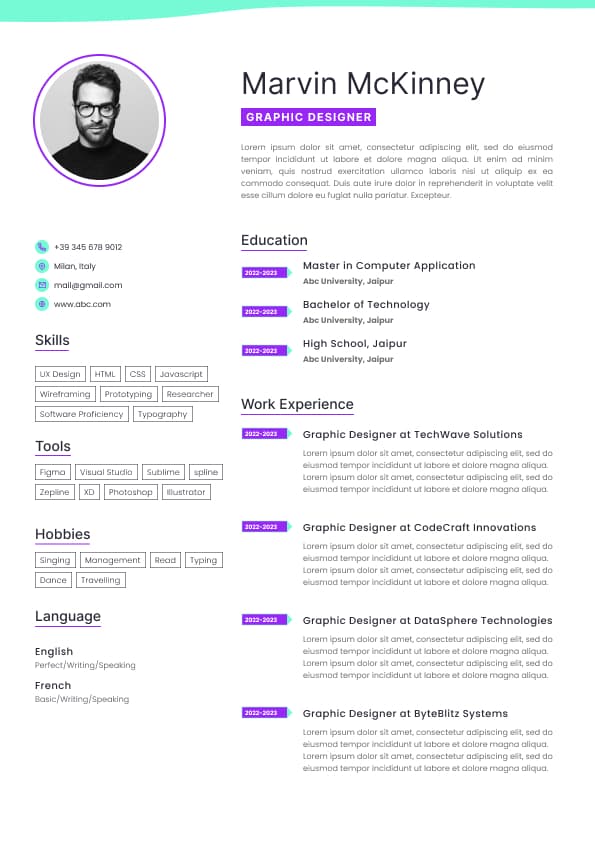
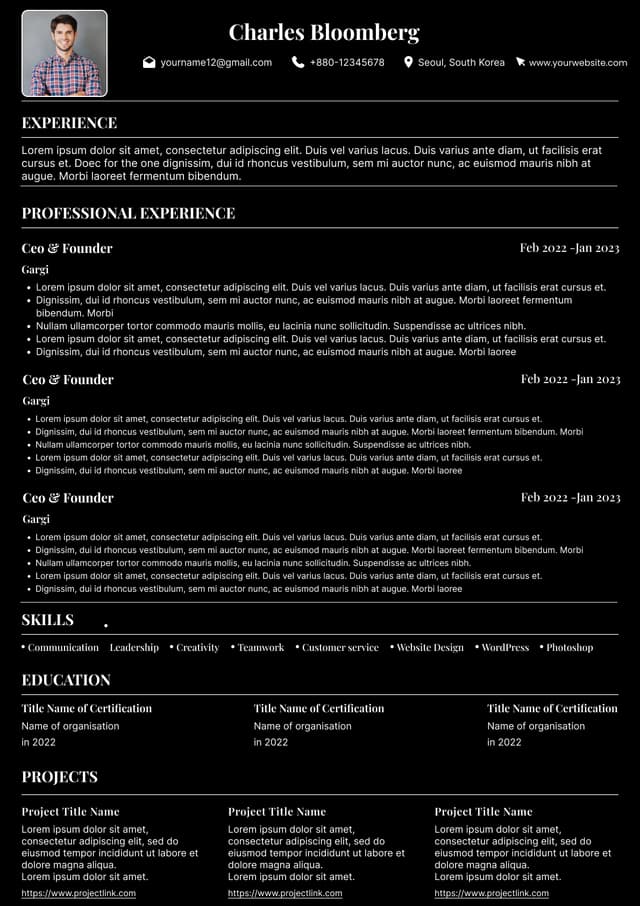
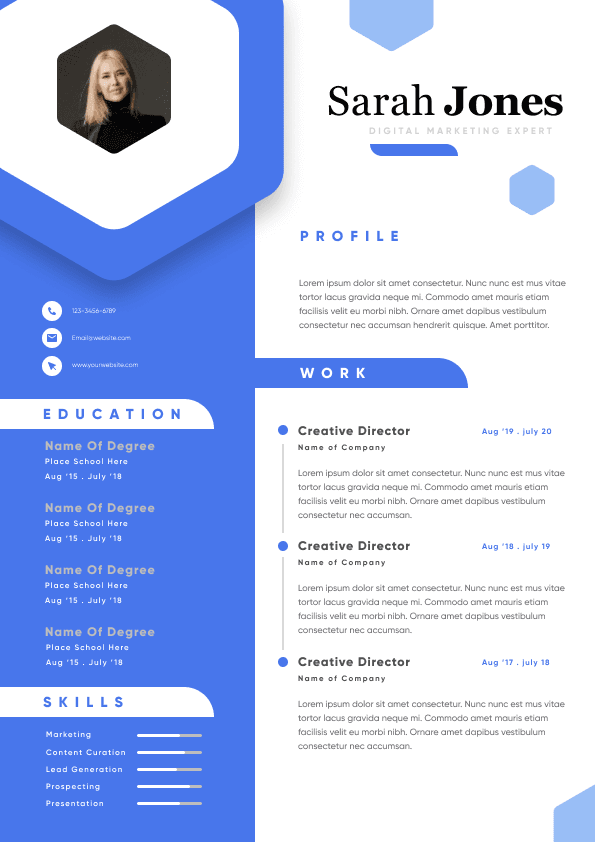
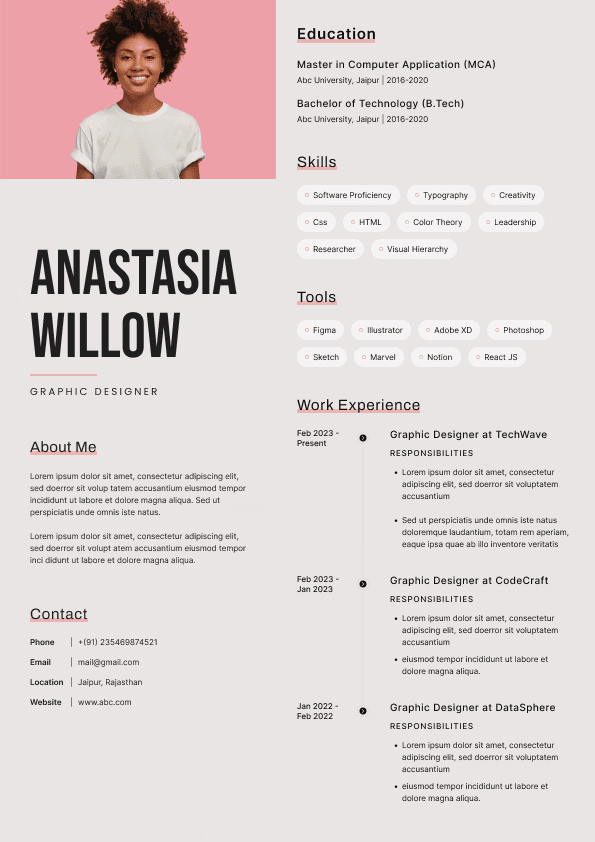
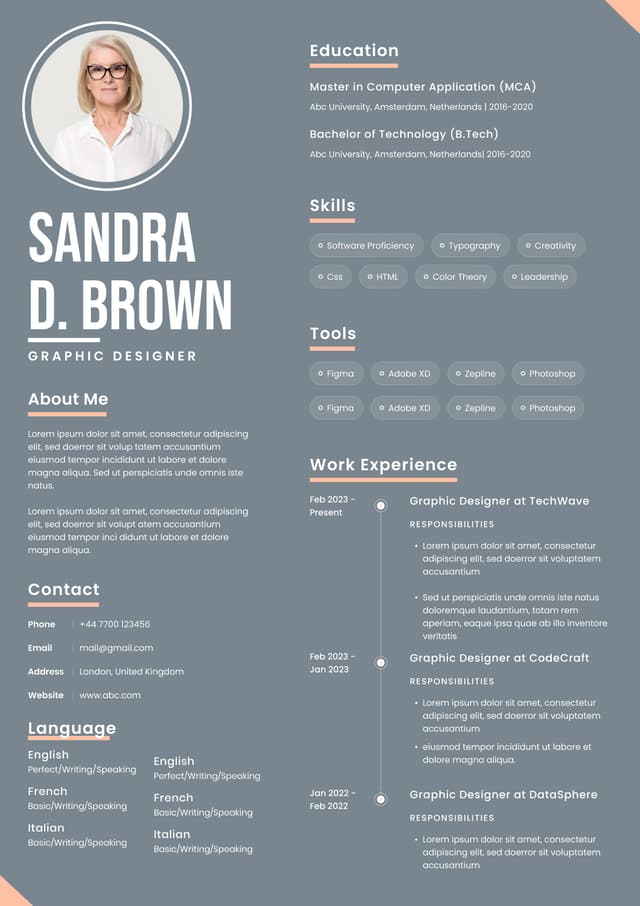
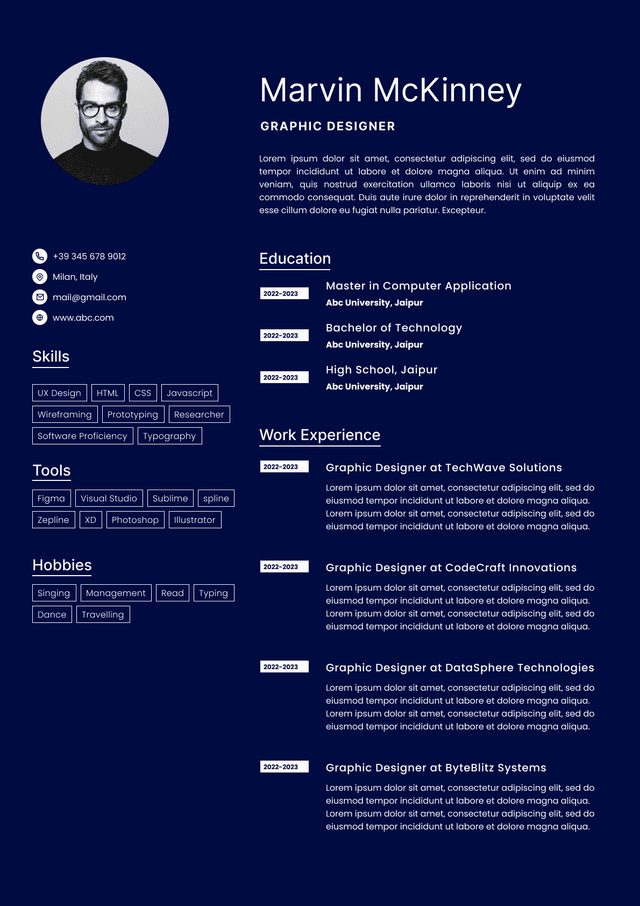
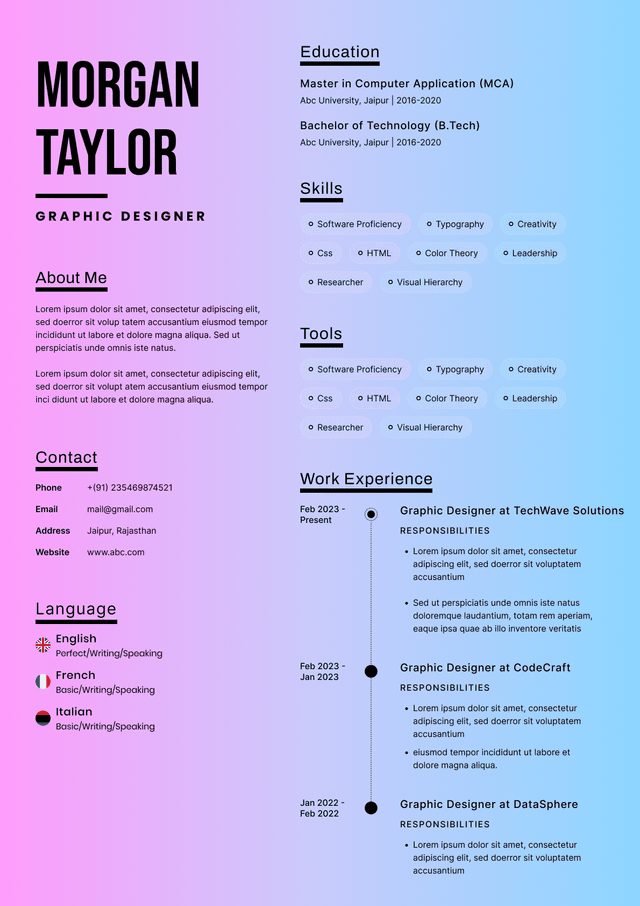
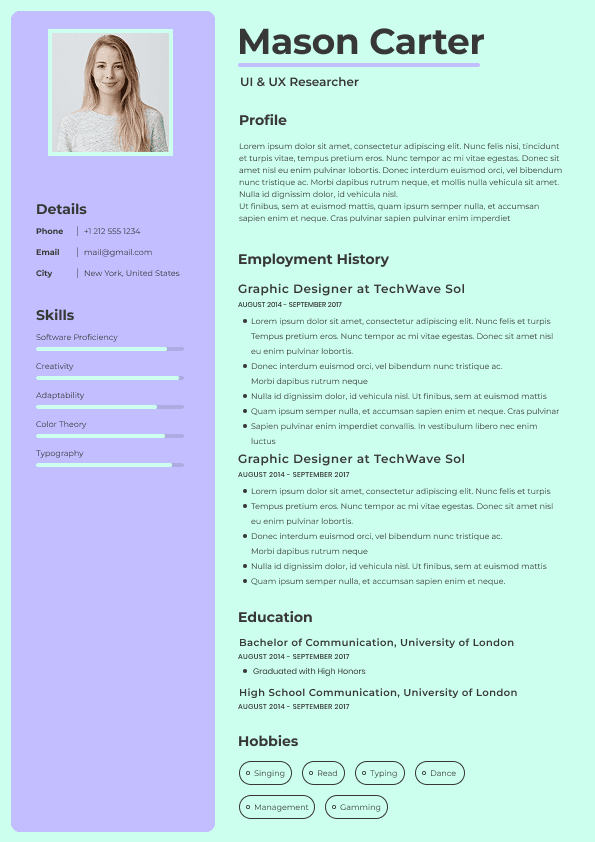
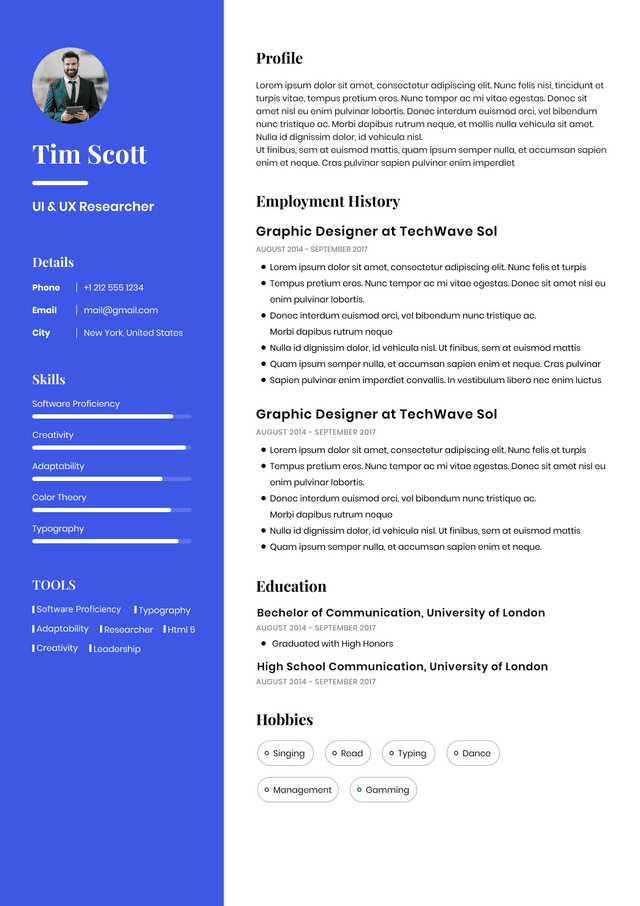
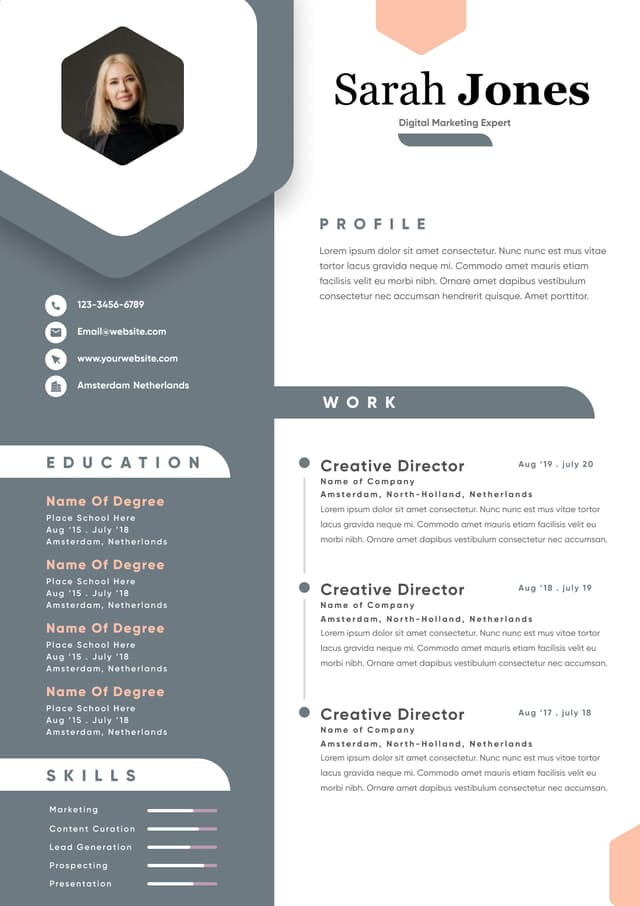
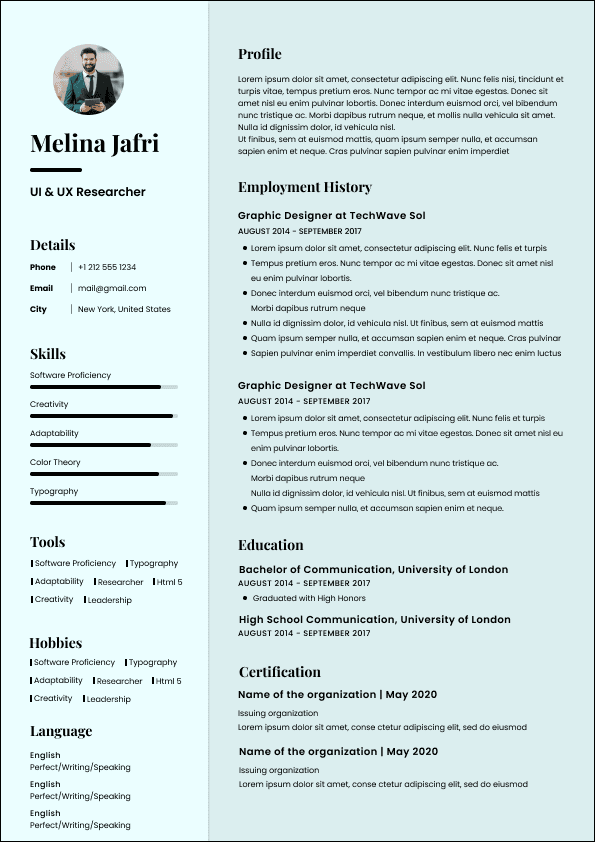
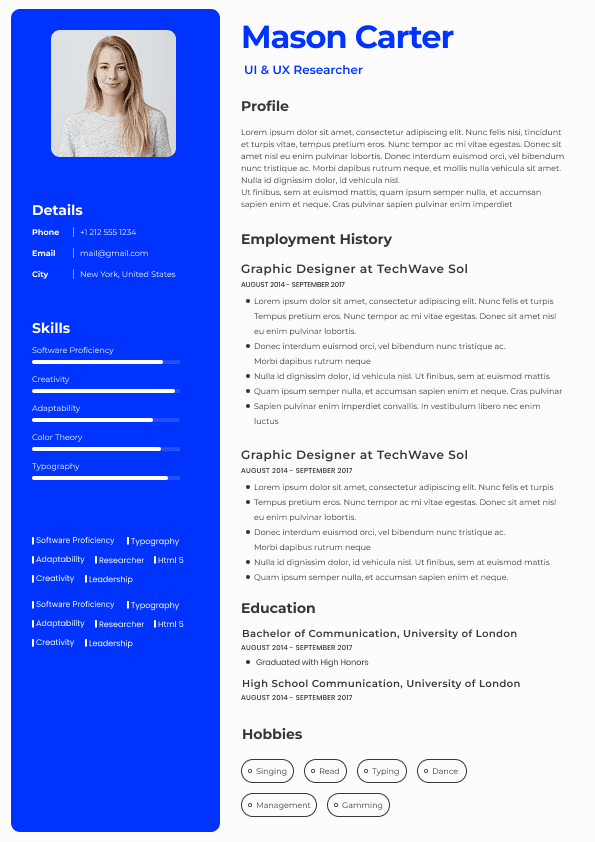
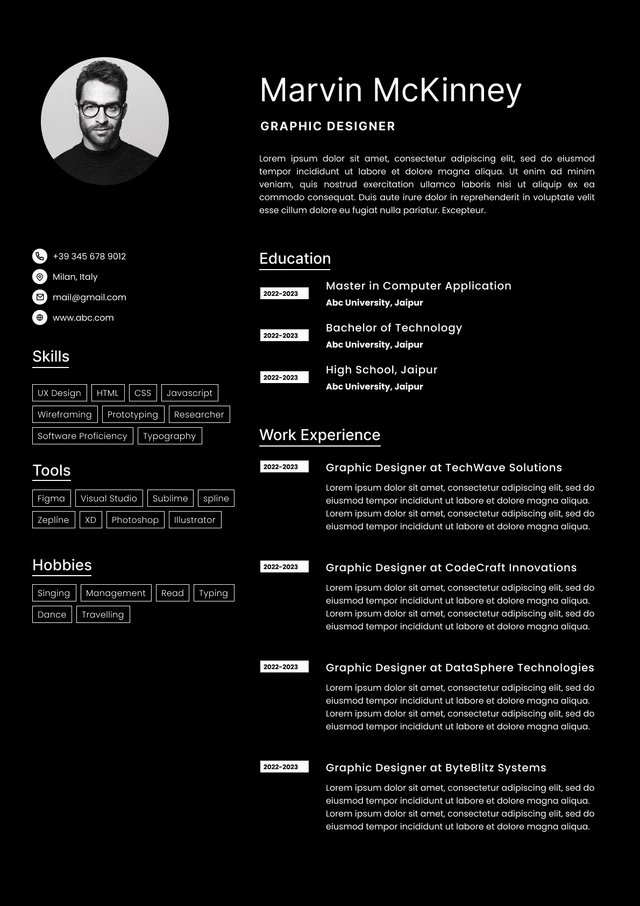
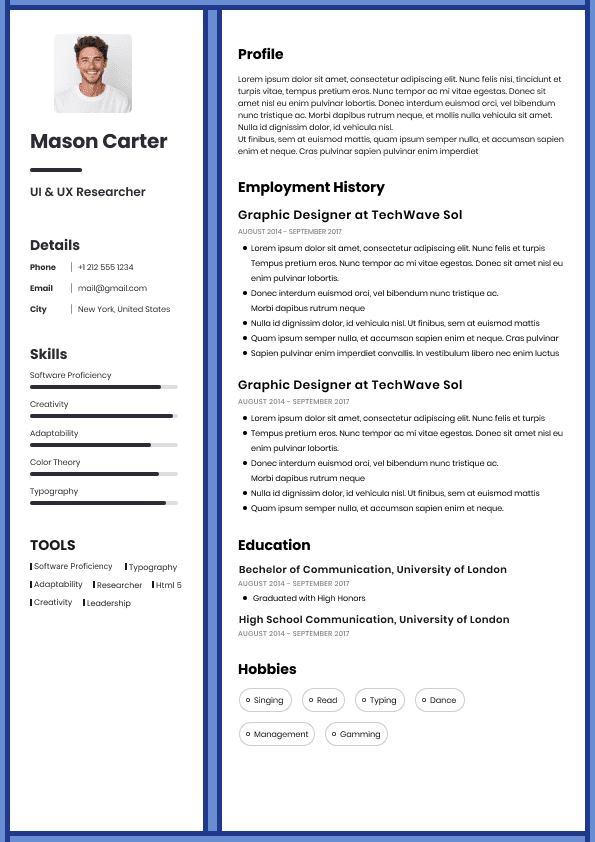
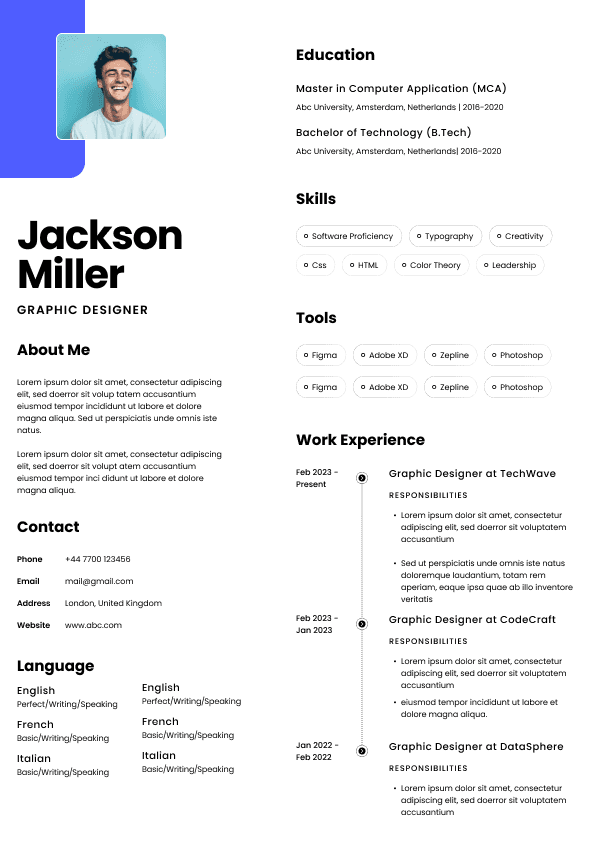
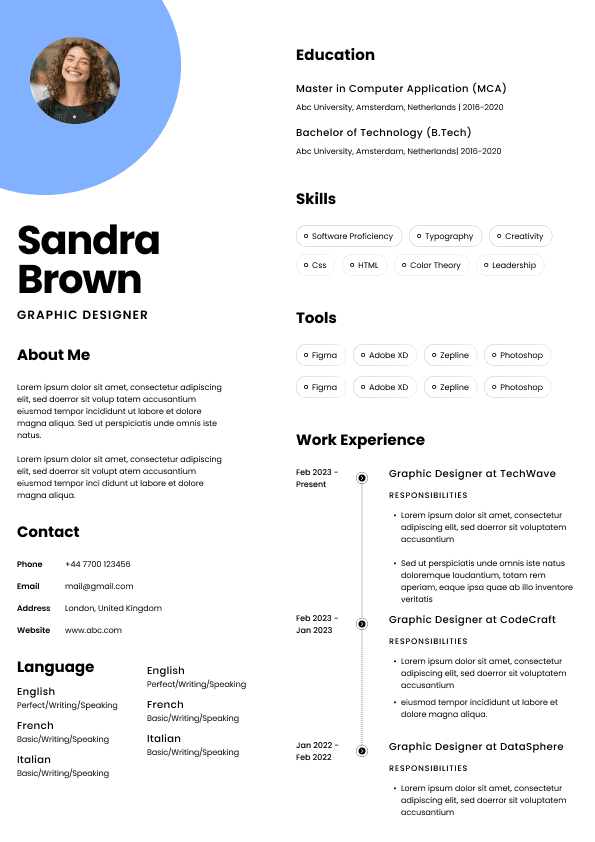
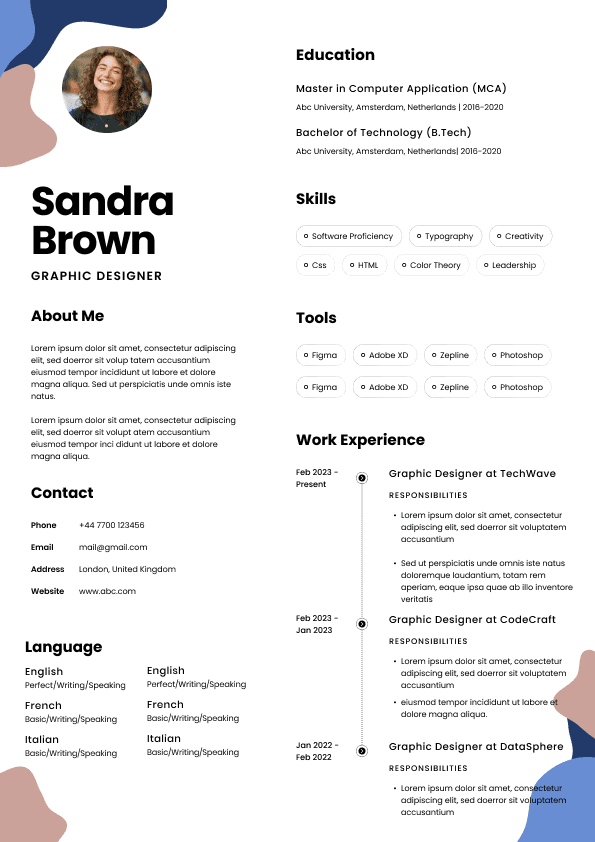
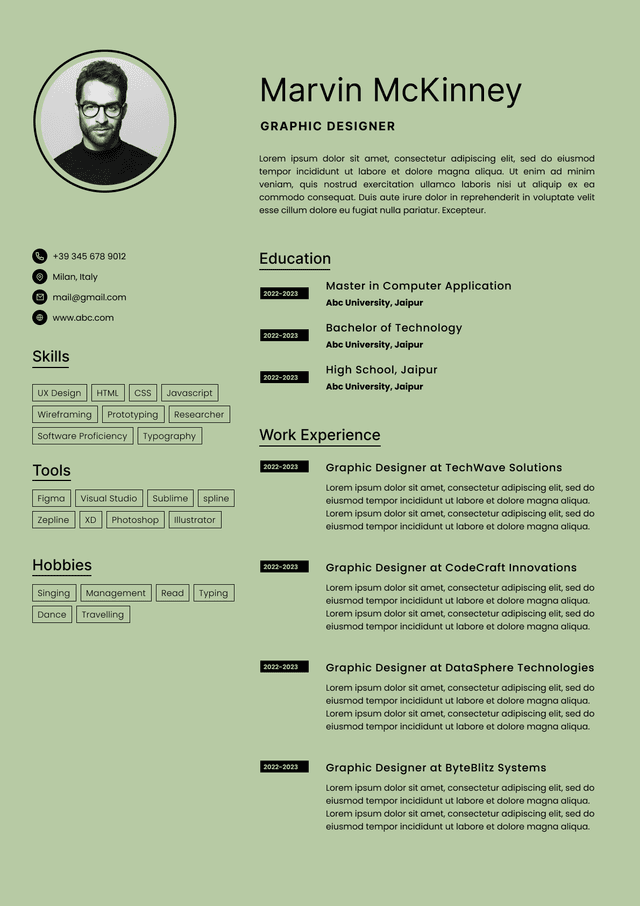
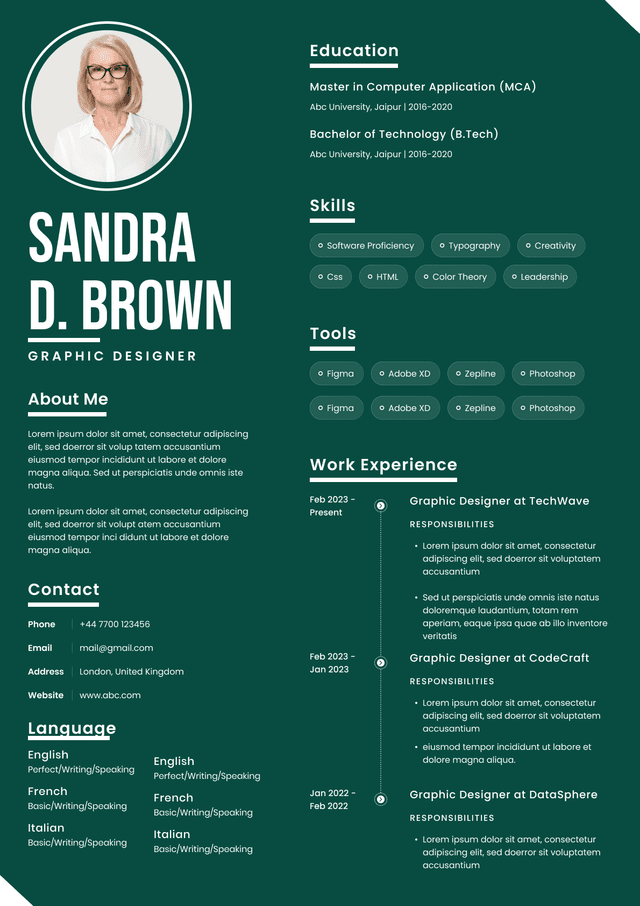
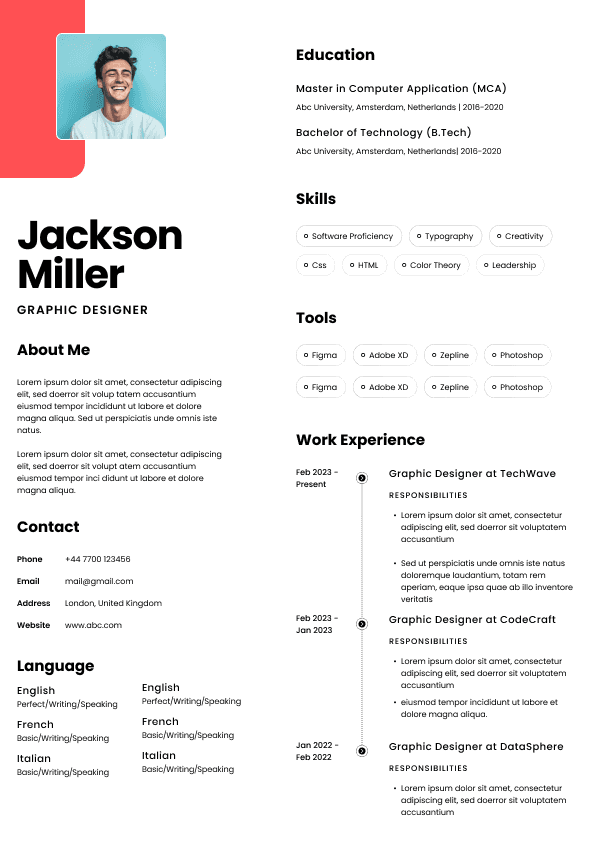
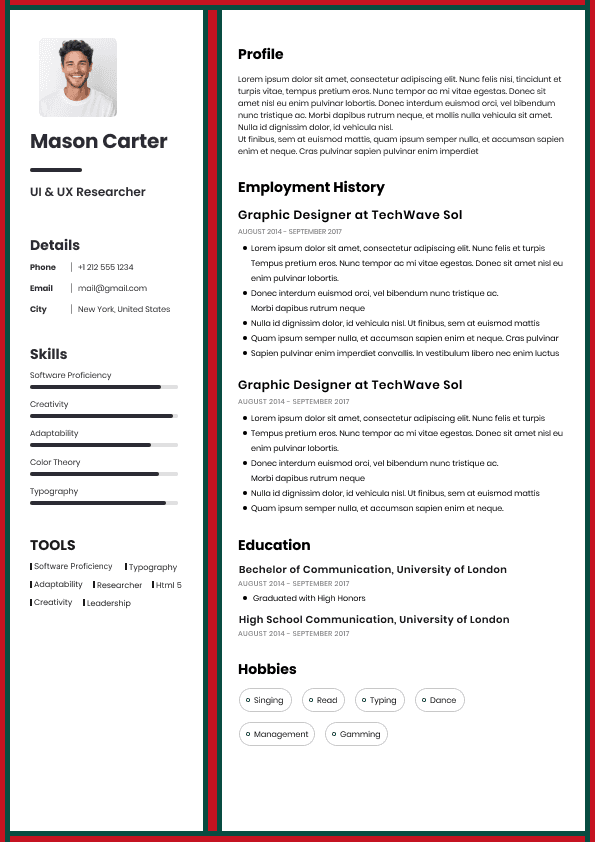
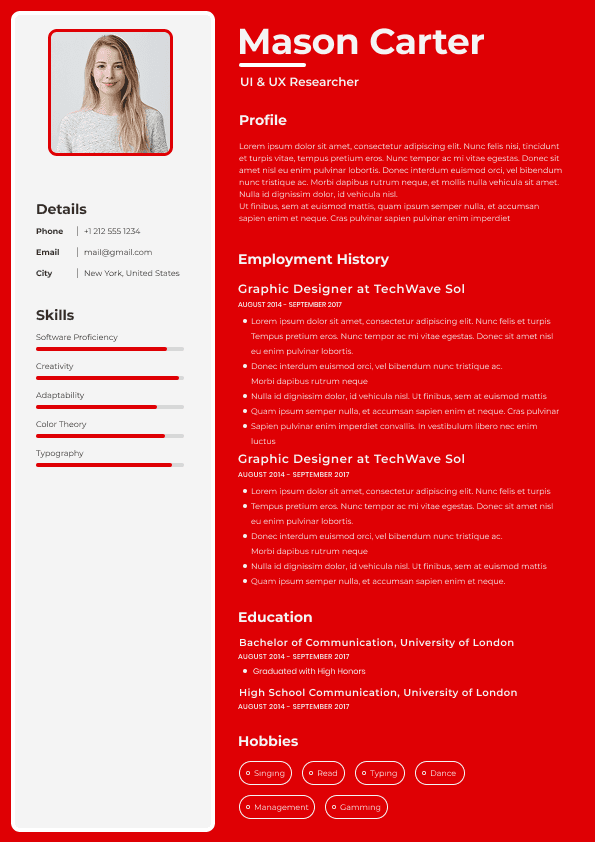
Choose from a wide range of NEWCV resume templates and customize your NEWCV design with a single click.
FAQ
React Native accessibility means designing and building mobile apps that work for users who rely on screen readers, larger text, voice controls, reduced motion settings, keyboard navigation, clear error messaging, and predictable interaction patterns. For employers in healthcare, fintech, education, enterprise software, and government technology, accessibility is not just a UX preference. It affects usability, compliance readiness, procurement, customer trust, and product quality. A strong React Native accessibility strategy includes WCAG awareness, ADA conscious design decisions, VoiceOver testing, TalkBack testing, accessible components, proper labels, focus management, color contrast, touch target sizing, and inclusive form behavior. For developers, it is also a career advantage because hiring managers increasingly want mobile engineers who can build apps that serve real users, not just visually perfect screens.
Accessibility has become a serious hiring differentiator for React Native developers. Many companies are no longer satisfied with developers who can only build polished screens. They want engineers who understand how people actually use mobile apps under different conditions.
In the US market, accessibility is especially important for employers that serve broad public audiences or operate in regulated spaces. This includes healthcare providers, banks, insurance platforms, universities, public sector contractors, HR technology companies, ecommerce brands, and enterprise SaaS products.
Hiring managers care because accessibility problems can create:
Poor user experiences for people with disabilities
Higher support ticket volume
Lower form completion rates
App store complaints
Legal and compliance risk
React Native accessibility is not one feature. It is a complete approach to mobile interaction quality.
An accessible React Native app should allow users to:
Understand what each screen is for
Navigate content in a logical order
Use VoiceOver on iOS
Use TalkBack on Android
Read content with larger system text settings
Complete forms without guessing
Understand validation errors
WCAG is commonly associated with web accessibility, but its principles are highly relevant to mobile apps. Employers often use WCAG as a practical benchmark when evaluating whether digital products are accessible.
The four core WCAG principles are especially useful for React Native teams.
Users must be able to perceive the information presented in the app. In React Native, this includes readable text, sufficient color contrast, screen reader friendly content, meaningful labels, and support for font scaling.
A common failure is designing screens that only work at default font size. When users increase text size, buttons may clip, forms may break, or important information may disappear.
Users must be able to interact with the app. This includes accessible touch targets, logical focus order, functional navigation, alternatives to complex gestures, and usable modal behavior.
Many mobile accessibility problems happen when custom components look beautiful but cannot be operated predictably by assistive technologies.
Users must understand what is happening and what action to take next. This includes clear labels, consistent navigation, helpful error messages, and predictable behavior.
For example, a payment form should not simply say “error.” It should explain exactly what needs to be corrected.
The app should work reliably with assistive technologies across devices and platforms. In React Native, this means testing both iOS VoiceOver and Android TalkBack instead of assuming one platform represents both.
Screen reader support is one of the most important parts of React Native accessibility.
VoiceOver and TalkBack allow users to hear interface elements, move through screens, understand available actions, and complete tasks without relying on visual cues.
Strong screen reader support includes:
Clear accessibility labels
Meaningful accessibility hints
Correct semantic roles
Logical reading order
Proper grouping of related content
Announcements for important state changes
Accessible form validation feedback
A mature React Native accessibility strategy must test both major mobile screen readers.
VoiceOver is used on iOS devices. TalkBack is used on Android devices. They often behave differently, especially with custom components, nested touch areas, modals, tab navigation, forms, and dynamic content.
React Native developers should not assume that accessibility behavior on iOS automatically works the same way on Android.
Strong mobile accessibility testing checks:
Swipe navigation order
Screen title announcements
Form field labels
Error message behavior
Modal focus handling
Tab bar state announcements
Accessible React Native apps depend on accessible components. If the component system is weak, accessibility problems repeat across the entire app.
Common components that require careful accessibility planning include:
Buttons
Form fields
Dropdowns
Checkboxes
Switches
Tabs
Modals
Bottom sheets
Forms are one of the highest impact areas for mobile accessibility. They also create some of the most visible business problems when they fail.
Poor form accessibility can cause users to abandon:
Account creation
Job applications
Checkout flows
Appointment scheduling
Insurance forms
Banking verification
Healthcare intake forms
Touch target sizing is one of the most practical accessibility issues in mobile design.
Small controls make apps harder to use for people with motor disabilities, older users, users with tremors, users with larger fingers, and users operating a phone one handed.
Common touch target failures include:
Tiny close icons
Small checkboxes
Crowded menu items
Inline text links
Compact filter chips
Small calendar date selectors
Overlapping tappable areas
Color contrast affects readability and usability for low vision users, color blind users, older adults, and anyone using a device in poor lighting.
Common color contrast mistakes include:
Light gray text on white backgrounds
Error states shown only in red
Disabled buttons that are too faint
Low contrast placeholder text
Icons without text labels
Status indicators based only on color
Accessible design should never rely on color alone. Important information should also be communicated with text, labels, icons, patterns, or clear state descriptions.
For example, an error field should not only have a red border. It should also include a clear error message that assistive technologies can identify.
Dynamic type support is a major accessibility expectation in modern mobile apps.
Users may increase system font size for readability. If the app layout cannot handle larger text, the experience becomes frustrating or unusable.
Common font scaling failures include:
Text clipped inside buttons
Overlapping labels
Truncated form instructions
Broken cards
Hidden call to action buttons
Crowded navigation tabs
Misaligned onboarding screens
Focus management is one of the most overlooked accessibility skills in React Native development.
When a modal opens, the screen reader should move into the modal content. When the modal closes, the user should return to a logical place. If focus moves unpredictably, users can become lost.
Accessibility problems often appear in:
Login modals
Confirmation dialogs
Bottom sheets
Filter panels
Date pickers
Multi step flows
Payment confirmation screens
Accessibility testing should include both tools and manual review.
Tools can catch certain issues, but they cannot fully judge whether a user experience makes sense.
Important accessibility testing resources include:
iOS VoiceOver
Android TalkBack
Accessibility Inspector
Xcode accessibility tools
Android Accessibility Scanner
Figma accessibility plugins
Color contrast checkers
Recruiters and hiring managers do not expect every React Native developer to be a full accessibility specialist. They do expect serious candidates to understand practical accessibility responsibilities.
Strong candidates can explain:
How they support screen readers
How they test VoiceOver and TalkBack
How they handle accessible forms
How they think about focus management
How they work with UX and QA teams
How they reduce accessibility defects
How accessibility affects product outcomes
Because React Native accessibility is a hiring differentiator, it should be positioned clearly on a resume when relevant. The best resume bullets connect accessibility work to implementation, testing, collaboration, and measurable improvement.
Strong resume bullets include:
Improved React Native app accessibility by adding screen reader labels, semantic roles, focus handling, and dynamic type support across iOS and Android experiences
Partnered with UX designers to implement WCAG aware mobile components for forms, modals, navigation, onboarding screens, and error states
Increased usability for assistive technology users by testing critical user flows with iOS VoiceOver and Android TalkBack
Reduced accessibility defects by creating reusable accessible components, QA checklists, and mobile accessibility review standards
Improved mobile form completion by enhancing validation messages, touch target sizing, keyboard behavior, and screen reader feedback
Accessibility work becomes more persuasive when connected to outcomes.
Useful accessibility related KPIs include:
Accessibility defects reduced
WCAG issue reduction
QA accessibility pass rate
Form completion rate
User task success rate
Support tickets reduced
App store rating improvement
Many accessibility problems come from good intentions executed poorly.
The most common mistakes include:
Treating accessibility as a final QA task
Testing only on one platform
Assuming labels alone solve accessibility
Ignoring font scaling
Designing touch targets too small
Using color as the only signal
Forgetting modal focus behavior
Generic accessibility advice usually says to “add labels” and “check contrast.” That is not enough for serious React Native teams.
A stronger approach is to build an accessibility operating system inside the product workflow.
That means:
Accessibility requirements are considered during design
Components are reviewed before reuse
Screen reader behavior is tested on real devices
Forms include clear validation patterns
QA has accessibility acceptance criteria
Developers understand iOS and Android differences
Accessibility defects are tracked like product defects
A practical accessibility workflow should be simple enough for teams to follow consistently.
A strong process includes:
Review designs for contrast, touch targets, text scaling, and interaction clarity
Define accessibility expectations before development starts
Use reusable accessible components where possible
Test critical flows with VoiceOver and TalkBack
Validate form errors and dynamic content announcements
Check large text settings before release
Include accessibility issues in QA tracking
React Native developers who understand accessibility stand out because they think beyond tickets. They understand users, risk, product adoption, and hiring manager priorities.
In competitive US hiring, accessibility experience can help candidates position themselves for stronger roles in:
Enterprise mobile development
Healthcare technology
Financial technology
Education technology
Government contracting
Insurance platforms
HR technology

Use ATS-optimised Resume and resume templates that pass applicant tracking systems. Our Resume builder helps recruiters read, scan, and shortlist your Resume faster.
Use professional field-tested resume templates that follow the exact Resume rules employers look for.
Create Resume
Use professional field-tested resume templates that follow the exact Resume rules employers look for.
Create ResumeFailed enterprise accessibility reviews
Lower adoption among older or assistive technology users
Product friction that affects all users, not only disabled users
A React Native developer who understands inclusive mobile design can help prevent these problems before they become expensive product issues.
Tap buttons and controls comfortably
Use the app without relying only on color
Reduce animation or motion when needed
Interact with modals, menus, tabs, and navigation safely
The strongest accessibility work happens when developers think beyond visual design. A screen may look clean to a sighted user but still be confusing or unusable for someone using a screen reader.
That is why accessibility conscious React Native development requires both technical knowledge and user empathy.
Robust accessibility is where strong developers separate themselves from average ones.
Predictable navigation between screens
The most common mistake is assuming that if a screen reader says something, the app is accessible. That is not enough. The question is whether the screen reader experience is clear, efficient, and usable.
A screen reader user should not have to guess what a button does, whether a form field has an error, or whether a modal has opened.
Dynamic content updates
Button and control descriptions
Hidden or decorative content behavior
From a hiring perspective, saying “tested with VoiceOver and TalkBack” is much stronger than saying “worked on accessibility.” It shows practical, device level validation.
Search bars
Error summaries
Toast messages
Navigation menus
Onboarding screens
Payment forms
Strong teams create reusable accessible components so developers do not solve the same problem differently on every screen.
This improves consistency, reduces QA defects, and makes accessibility easier to maintain as the app grows.
Subscription signup
Accessible React Native forms should include:
Clear field labels
Helpful placeholder support without relying on placeholders alone
Specific validation messages
Screen reader friendly error feedback
Logical field order
Keyboard aware layouts
Large enough touch targets
Clear required field indicators
Predictable submit behavior
A strong validation message tells the user exactly what to fix.
Weak Example
“Invalid entry.”
This gives no useful direction.
Good Example
“Password must include at least eight characters and one number.”
The good example improves usability because it gives the user a clear next action.
Hiring managers and product leaders increasingly see touch target quality as part of mobile UX maturity. A developer who notices and fixes these issues is thinking like a product engineer, not just an implementation resource.
Good React Native accessibility requires layout resilience. The app should remain usable when text size increases, even if the visual layout changes.
This is especially important in healthcare, banking, government, insurance, and education apps where users must understand important information accurately.
Error alerts
Accessible navigation should also provide clear screen context. Users should know where they are, what changed, and what action is available next.
This matters because mobile apps often update content dynamically. If assistive technology users are not informed of changes, they may miss important information.
axe DevTools for related web experiences
Manual device testing
QA accessibility checklists
Manual testing is essential because many accessibility issues are experiential. A tool might confirm that a label exists, but only a human reviewer can tell whether the label actually makes sense in context.
Weak candidates usually describe accessibility in vague terms.
Weak Example
“Helped make the app more accessible.”
This does not show scope, skill, or outcome.
Good Example
“Improved mobile accessibility by partnering with UX and QA teams to standardize screen reader labels, touch target sizing, form error messaging, and VoiceOver and TalkBack testing across onboarding flows.”
The good example is stronger because it shows collaboration, implementation, testing, and product scope.
Supported ADA conscious app design by aligning mobile UI patterns with accessibility best practices for healthcare, fintech, and enterprise users
Improved QA accessibility pass rates by validating screen reader behavior, font scaling, contrast, navigation order, and modal focus behavior before release
These bullets work because they show practical delivery, not just awareness.
User onboarding completion
Time to complete key flows
Customer complaint reduction
Not every team tracks all of these metrics. That is normal. But strong developers can still describe the before and after impact of accessibility improvements.
For example, reducing repeated form errors, improving screen reader completion of onboarding, or lowering accessibility bugs before release all show meaningful impact.
Building custom components without accessibility review
Writing vague error messages
Not involving QA early enough
Failing to document accessible component patterns
The biggest strategic mistake is waiting until the end of development. Accessibility is much easier to build into components, design systems, and workflows early than to retrofit after launch.
Releases do not treat accessibility as optional
This is the kind of maturity hiring managers value because it protects product quality and reduces long term risk.
Document patterns so the team repeats good decisions
The goal is not perfection in one sprint. The goal is repeatable accessibility maturity that improves with every release.
Public facing consumer apps
The strongest candidates do not frame accessibility as charity or compliance only. They frame it as better engineering, better UX, and better business performance.
That is exactly how modern hiring managers want developers to think.




 Upload Resume
 Import from Linkedin