STILL APPLYING. STILL HEARING NOTHING?BUILD YOUR RESUME

STILL APPLYING. STILL HEARING NOTHING?BUILD YOUR RESUME
Choose from a wide range of NEWCV resume templates and customize your NEWCV design with a single click.
FAQ
iOS accessibility means building apps that work for people using VoiceOver, Dynamic Type, Switch Control, keyboard navigation, reduced motion, larger text, and other assistive settings. For iOS developers, accessibility is not just a compliance task. It is a product quality skill that affects usability, App Store readiness, enterprise adoption, and hiring value. Strong accessibility work helps apps perform better in healthcare, banking, government, education, insurance, and enterprise environments where inclusive mobile UX is expected. The best iOS accessibility developers know how to write semantic SwiftUI and UIKit interfaces, test with real assistive technology, fix VoiceOver and Dynamic Type failures, and explain accessibility outcomes in terms hiring managers understand.
iOS app accessibility is the practice of making native iPhone and iPad apps usable for people with visual, motor, hearing, cognitive, and neurological disabilities.
In practical development terms, that means every meaningful screen, control, form, button, gesture, message, and navigation flow must be understandable and usable without relying only on sight, precise touch, color, animation, or visual layout.
A strong accessible iOS app supports:
VoiceOver screen reader navigation
Dynamic Type and larger accessibility text sizes
Clear accessibility labels, hints, values, and traits
Logical focus order
Proper semantic grouping
Sufficient color contrast
Accessibility matters because it affects real users, business risk, engineering quality, and hiring outcomes.
For users, accessibility can determine whether they can log in, make a payment, book an appointment, complete a form, read an alert, or navigate a feature without assistance. For companies, poor accessibility can create usability complaints, legal exposure, failed enterprise reviews, lower app ratings, and lost customers.
For developers, accessibility is a signal of engineering maturity.
Hiring managers increasingly value iOS developers who understand accessibility because it shows they can think beyond visual implementation. They can build for edge cases, collaborate with designers, prevent quality defects, and ship apps that survive real-world usage.
This is especially important in:
Healthcare apps
Government apps
Banking and fintech apps
Education technology apps
Insurance platforms
A strong iOS accessibility developer understands both implementation and user experience.
Basic accessibility knowledge is not enough. Many developers know how to add an accessibility label, but fewer understand how VoiceOver users actually move through a task, how Dynamic Type breaks layouts, or how custom UI can become unusable.
Core iOS accessibility skills include:
Writing meaningful accessibility labels
Using accessibility hints only when they add value
Setting correct accessibility traits
Supporting Dynamic Type without layout failure
Designing logical VoiceOver focus order
Grouping related content semantically
SwiftUI gives developers strong accessibility defaults, but default behavior is not enough for production quality. Many SwiftUI apps still fail because custom views, icon buttons, gestures, cards, and complex layouts are not described correctly to assistive technologies.
An accessibility label should describe what the element means or does, not just what it looks like.
Weak Example
swift
Image(systemName: "trash")
.accessibilityLabel("Trash")
This label is technically present, but it does not give enough context.
Good Example
The good version explains the action clearly. That matters because VoiceOver users often hear elements outside the full visual context.
Hints should explain what will happen after activation when the outcome is not obvious.
Weak Example
This repeats basic interaction behavior.
Good Example
A good hint reduces uncertainty. A bad hint adds noise.
SwiftUI makes text scaling easier, but developers still break Dynamic Type by using rigid frames, fixed heights, tight stacks, and layouts that do not scroll.
UIKit remains heavily used in enterprise, banking, healthcare, and large legacy iOS apps. Senior iOS developers should understand UIKit accessibility because many high value roles involve maintaining or modernizing UIKit codebases.
UIKit accessibility relies on properties such as:
•accessibilityLabel
•accessibilityHint
•accessibilityValue
•accessibilityTraits
•isAccessibilityElement
These properties should describe the user experience, not the code structure.
A button that submits a claim should not simply say “Submit.” It should make the action clear in context, such as “Submit insurance claim.”
Focus management is one of the most overlooked UIKit accessibility issues.
When a modal, alert, confirmation screen, or new view appears, VoiceOver focus should move to the right element. If focus remains behind the modal or lands on the wrong control, the user can become disoriented.
UIKit developers often use:
This is especially important for:
VoiceOver testing is where many accessibility claims fall apart. Passing automated checks does not prove the app is usable.
A real VoiceOver review evaluates whether a person can complete meaningful tasks.
VoiceOver testing should check:
•Whether the first focused element makes sense
•Whether swipe order matches the visual and task order
•Whether labels are clear without visual context
•Whether buttons describe actions accurately
•Whether grouped content is efficient to understand
•Whether alerts and errors are announced
•Whether modal focus is trapped correctly
•Whether custom gestures have accessible alternatives
•Whether repeated elements create unnecessary noise
•Whether the user can complete the full flow independently
The most important question is not “Does VoiceOver read something?” The better question is “Can a VoiceOver user understand and complete this task without guessing?”
Dynamic Type is one of the strongest indicators of iOS accessibility quality because it exposes weak layout decisions quickly.
Many apps claim to support Dynamic Type but fail at larger accessibility sizes.
Common failures include:
•Clipped text
•Overlapping elements
•Buttons pushed off screen
•Forms that become impossible to complete
•Cards with fixed heights
•Labels truncated before essential information
•Navigation bars that cannot handle larger text
•Primary actions hidden below unreachable content
Good Dynamic Type support requires design and engineering alignment. The layout must be flexible before implementation begins.
Developers should test:
•Standard text sizes
•Larger accessibility text sizes
•Landscape orientation where relevant
WCAG is often associated with websites, but its principles are highly relevant to native iOS apps. Many enterprise accessibility reviews use WCAG as the evaluation standard even for mobile products.
The most relevant WCAG concepts for iOS include:
•Content must be perceivable
•Interfaces must be operable
•Navigation must be understandable
•UI behavior must be robust across assistive technologies
For iOS developers, this commonly translates into:
•Sufficient color contrast
•Text that can resize without losing meaning
•Controls that work without relying only on gestures
•Forms with clear labels and error messages
•Navigation that is predictable
•Content that is not dependent on color alone
•Motion that can be reduced
•Components that expose correct accessibility semantics
Strong accessibility testing uses both tools and human review. No single tool is enough.
Accessibility Inspector helps developers inspect labels, traits, hierarchy, focus behavior, and common accessibility issues.
It is useful for finding:
•Missing labels
•Incorrect traits
•Poor focus order
•Hit target issues
•Contrast concerns
•Element hierarchy problems
Accessibility Inspector is valuable, but it should not replace real VoiceOver testing.
VoiceOver should be tested on actual iPhones and iPads.
Real device testing reveals:
•Gesture friction
•Timing problems
Accessible iOS apps usually feel more polished because accessibility improves overall product clarity.
Inclusive mobile UX affects:
•Navigation quality
•Form completion
•Onboarding success
•Error recovery
•Readability
•Tap accuracy
•User confidence
•Support ticket volume
•App reviews
Accessibility also forces teams to make better product decisions. If a screen cannot be explained clearly to VoiceOver, the screen may be too confusing visually as well.
Strong accessibility improves app quality because it exposes unclear hierarchy, weak labeling, inconsistent interactions, and fragile layouts.
That is why accessibility is not only a compliance skill. It is a product quality skill.
For iOS developer roles, accessibility experience can be a strong differentiator when presented correctly.
Hiring managers do not want vague claims. They want evidence that the developer has improved real user outcomes.
Strong signals include:
•Built accessible SwiftUI and UIKit components
•Improved VoiceOver navigation flows
•Increased Dynamic Type compatibility
•Reduced accessibility defects
•Worked with UX teams on inclusive design
•Used Accessibility Inspector and manual VoiceOver testing
•Supported WCAG aligned mobile reviews
•Improved accessibility audit scores
•Built reusable accessibility patterns across a design system
Weak signals include:
•“Worked on accessibility”
•“Added accessibility labels”
Most accessibility failures happen because teams treat accessibility as a final checklist instead of a development standard.
Labels are necessary, but they are not enough. A screen can have labels and still be unusable if focus order, grouping, hints, and state changes are poor.
Custom UI is one of the biggest accessibility risks in iOS apps. The more visually custom a component is, the more intentional its accessibility implementation must be.
Many apps look polished at default text size and break badly when users enable larger accessibility sizes.
Error states, approval statuses, warnings, and required fields should not rely only on color.
Too many hints slow down VoiceOver users. Hints should clarify unclear outcomes, not repeat obvious behavior.
Enterprise and professional users often rely on keyboards with iPads. Keyboard navigation is increasingly important for productivity apps, healthcare apps, field service apps, and enterprise tools.
A strong accessibility workflow should be built into every feature cycle.
Use this practical framework:
•Define the user task before building the screen
•Design flexible layouts for larger text from the start
•Use native controls when possible
•Add semantic meaning to custom components
•Write labels that make sense without visual context
•Test VoiceOver order during development
•Validate Dynamic Type at accessibility sizes
•Check color contrast and reduced motion behavior
•Test errors, alerts, modals, and empty states
•Use Accessibility Inspector for structure checks
•Add automated checks where possible
•Complete manual assistive technology testing before release
This approach prevents accessibility from becoming expensive cleanup work later.
Accessibility work becomes more valuable when it is measured.
Useful accessibility KPIs include:
•Improved accessibility audit score
•Reduced accessibility defects
•Increased Dynamic Type compatibility
•Improved VoiceOver task completion
•Reduced UI usability complaints
•Lower support ticket volume
•Improved app rating after accessibility fixes
•Faster QA approval for accessibility reviewed releases
•Increased reusable accessible component coverage
These metrics matter because they connect accessibility to business outcomes, not just engineering activity.
For developers, this also strengthens career positioning. Hiring managers respond better to measurable results than general statements about inclusive design.

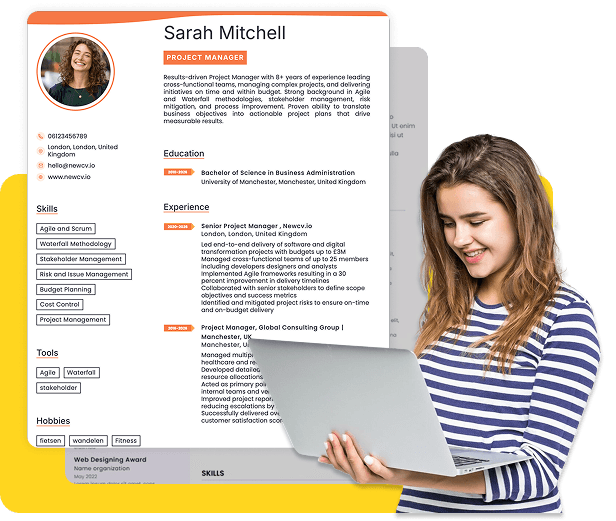
Use ATS-optimised Resume and resume templates that pass applicant tracking systems. Our Resume builder helps recruiters read, scan, and shortlist your Resume faster.
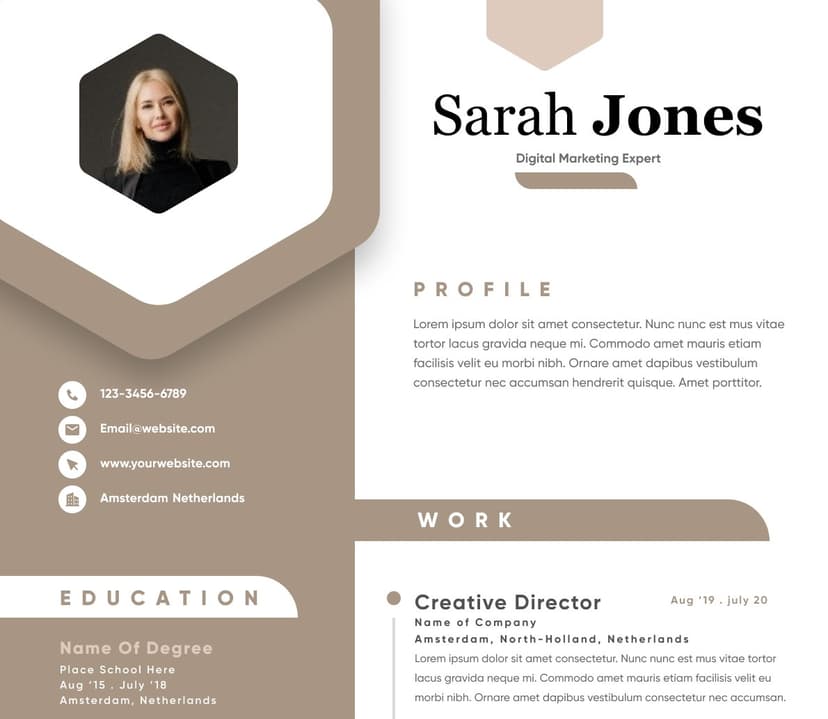
Use professional field-tested resume templates that follow the exact Resume rules employers look for.
Create Resume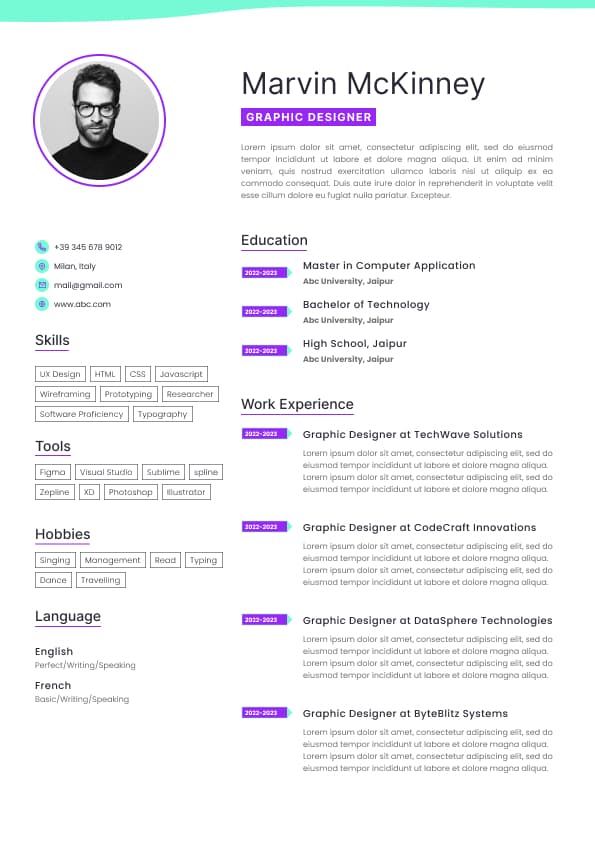
Use professional field-tested resume templates that follow the exact Resume rules employers look for.
Create ResumeReduced Motion settings
Large enough tap targets
Keyboard navigation on iPad
Switch Control usability
Accessible custom components
Predictable modal and navigation behavior
The goal is not to “add accessibility” after the app is finished. The goal is to build the app so accessibility is part of the UI architecture, QA process, and release standard from the beginning.
Enterprise mobile apps
Public sector mobile systems
Consumer apps with large user bases
In these environments, accessibility is not a nice extra. It is often tied to product approval, procurement, compliance, QA signoff, and customer trust.
Managing modal focus changes
Making custom controls discoverable
Supporting reduced motion preferences
Testing on real devices
Understanding WCAG principles for native mobile apps
Using Accessibility Inspector and Xcode accessibility checks
The strongest developers also understand accessibility as part of product quality. They can explain how an accessibility fix improves task completion, reduces defects, lowers support tickets, or improves audit results.
A Dynamic Type friendly SwiftUI interface should:
•Allow text to wrap naturally
•Avoid fixed height containers for text heavy components
•Use scalable typography
•Test accessibility text sizes, not only standard sizes
•Keep primary actions visible or reachable
•Support scroll behavior when content expands
•Avoid overlapping text and buttons
Dynamic Type failures are one of the most common accessibility defects in iOS apps because teams often test only the default font size.
SwiftUI views often contain multiple pieces of related information. Without grouping, VoiceOver may read every small element separately, creating a slow and confusing experience.
Good Example
This helps VoiceOver present related information as one meaningful unit.
Custom SwiftUI components need extra attention. If a custom component behaves like a button, toggle, slider, tab, or menu item, it must communicate that behavior semantically.
Common SwiftUI accessibility failures include:
•Custom buttons without button traits
•Icon only controls with unclear labels
•Gesture only actions without accessible alternatives
•Custom cards that hide important actions
•Tap areas that are too small
•Complex views read in the wrong order
•Visual state changes not announced to VoiceOver
Good SwiftUI accessibility means the app is usable even when the visual design is not visible.
•Login flows
•Payment confirmations
•Error messages
•Modal screens
•Multi step forms
•Checkout flows
•Healthcare appointment booking
•Banking authentication screens
Focus management is not a small detail. It directly affects whether a VoiceOver user can complete the task.
Table views and collection views are common sources of accessibility issues.
Strong implementations include:
•Clear cell labels
•Proper grouping of related content
•Meaningful accessibility values
•Custom accessibility actions for swipe actions
•Logical reading order
•Avoiding duplicate announcements
•Clear selected and disabled states
For example, a banking transaction cell should not read separate fragments like merchant, date, amount, and status without context. It should provide a useful combined summary.
Custom accessibility actions help users complete tasks efficiently when visual gestures are not accessible.
They are useful for:
•Deleting items
•Reordering rows
•Opening secondary actions
•Managing saved accounts
•Archiving messages
•Approving requests
•Expanding collapsed content
A strong UIKit developer knows when to expose these actions so VoiceOver users are not forced through inefficient workarounds.
•Long localized strings
•Forms with validation messages
•Content heavy cards
•Navigation titles and tab labels
A hiring manager reviewing an iOS developer with accessibility experience will value this because Dynamic Type issues often create production defects that affect older users, low vision users, and anyone who prefers larger text.
A practical iOS accessibility developer does not need to quote every WCAG criterion from memory. But they should understand how WCAG principles apply to real mobile UI decisions.
•Confusing announcements
•Inefficient navigation
•Modal behavior problems
•Real task completion barriers
Developers who only test accessibility in simulators often miss the practical user experience.
Xcode previews can help developers see how layouts respond to larger text sizes early.
They are useful for:
•Catching clipping issues
•Testing flexible layout behavior
•Reviewing spacing changes
•Previewing component states
•Spotting design problems before QA
Automated accessibility checks can help prevent regressions, especially in larger teams.
They can support:
•Missing label detection
•Trait validation
•Accessibility hierarchy review
•Regression prevention
•CI quality gates
However, automated checks cannot fully judge whether a flow is understandable, efficient, or comfortable for a real user.
•“Made app accessible”
These phrases are too vague. They do not show impact, judgment, or depth.
A stronger resume bullet would be:
This works because it connects implementation to business and quality outcomes.
Compliance matters, but usability matters more. Apps should be accessible enough for users to complete real tasks efficiently.
The best teams do not ask, “Can we make this accessible after launch?” They ask, “What accessibility requirements must this feature meet before it is considered done?”


 Upload Resume
 Import from Linkedin